
Getting Started with Risk Dashboard
The Risk Dashboard in the Uproot Security platform provides a centralized view of your organization’s risk posture.
It enables teams to identify, assess, monitor, and manage risks across cloud environments, vendors, devices, and other external sources from a centralized location.
Accessing the Risk Dashboard
To access the Risk Dashboard:
- Navigate to Organization → Dashboard.
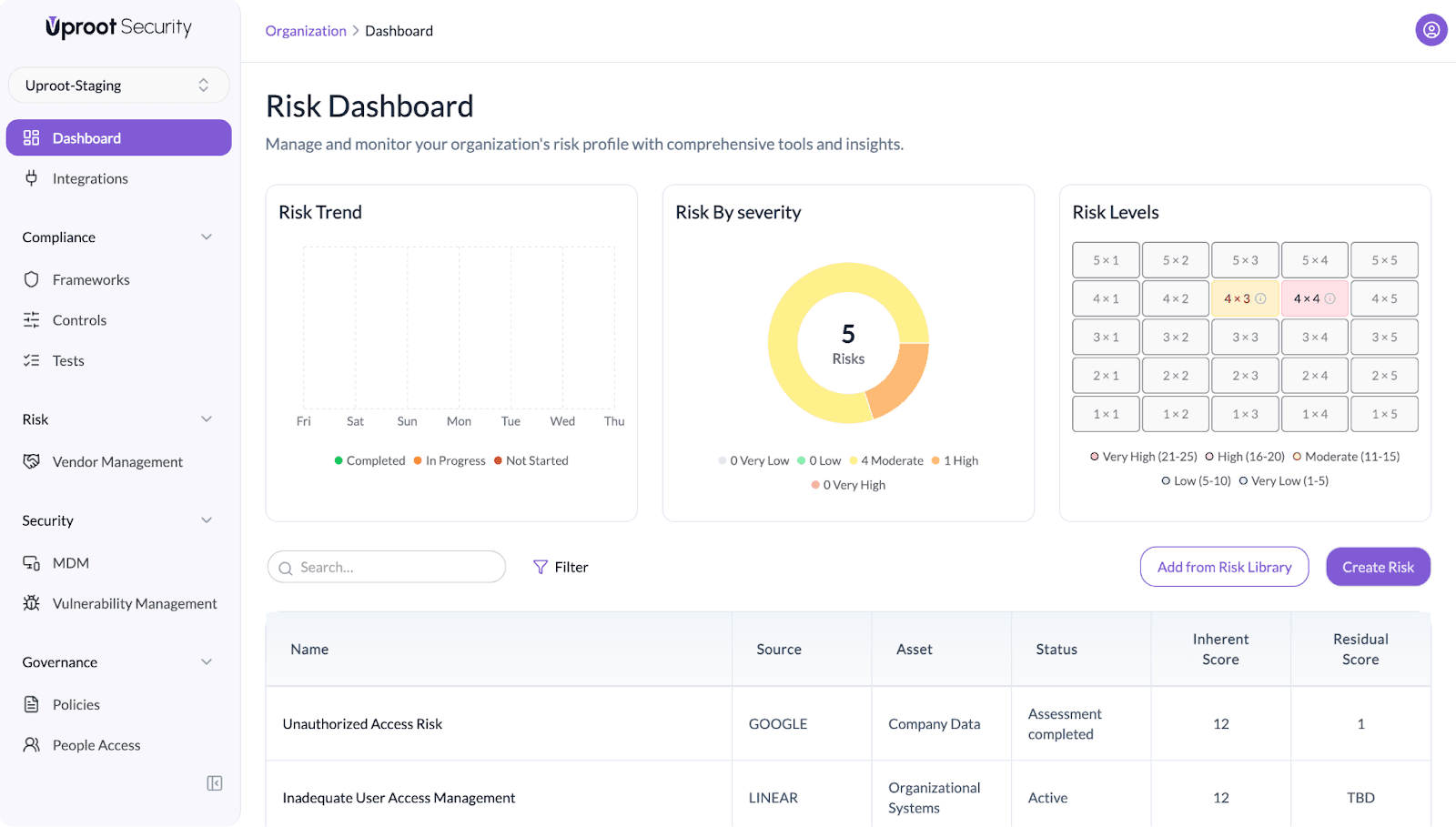
The Risk Dashboard displays a high-level overview of risks followed by a detailed risk list.
Risk Dashboard Overview
The top section of the dashboard provides a summary of risk exposure across the organization.
Risk Trend
Displays the progression of risks over time.
Risks are categorized by status:
- Completed
- In Progress
- Not Started
This helps track remediation progress and overall risk movement.
Risk by Severity
Shows the distribution of risks by severity level:
- Very Low
- Low
- Moderate
- High
- Very High
This view helps teams understand overall exposure and prioritize attention where needed.
Risk Levels
Displays a 5 × 5 risk matrix based on:
- Impact
- Likelihood
Each risk is positioned according to its calculated score (Impact × Likelihood).
Severity categories include:
- Very Low (1–5)
- Low (6–10)
- Moderate (11–15)
- High (16–20)
- Very High (21–25)
This matrix provides a visual representation of risk concentration.
Risk List
Below the dashboard overview, all risks are displayed in a table format.
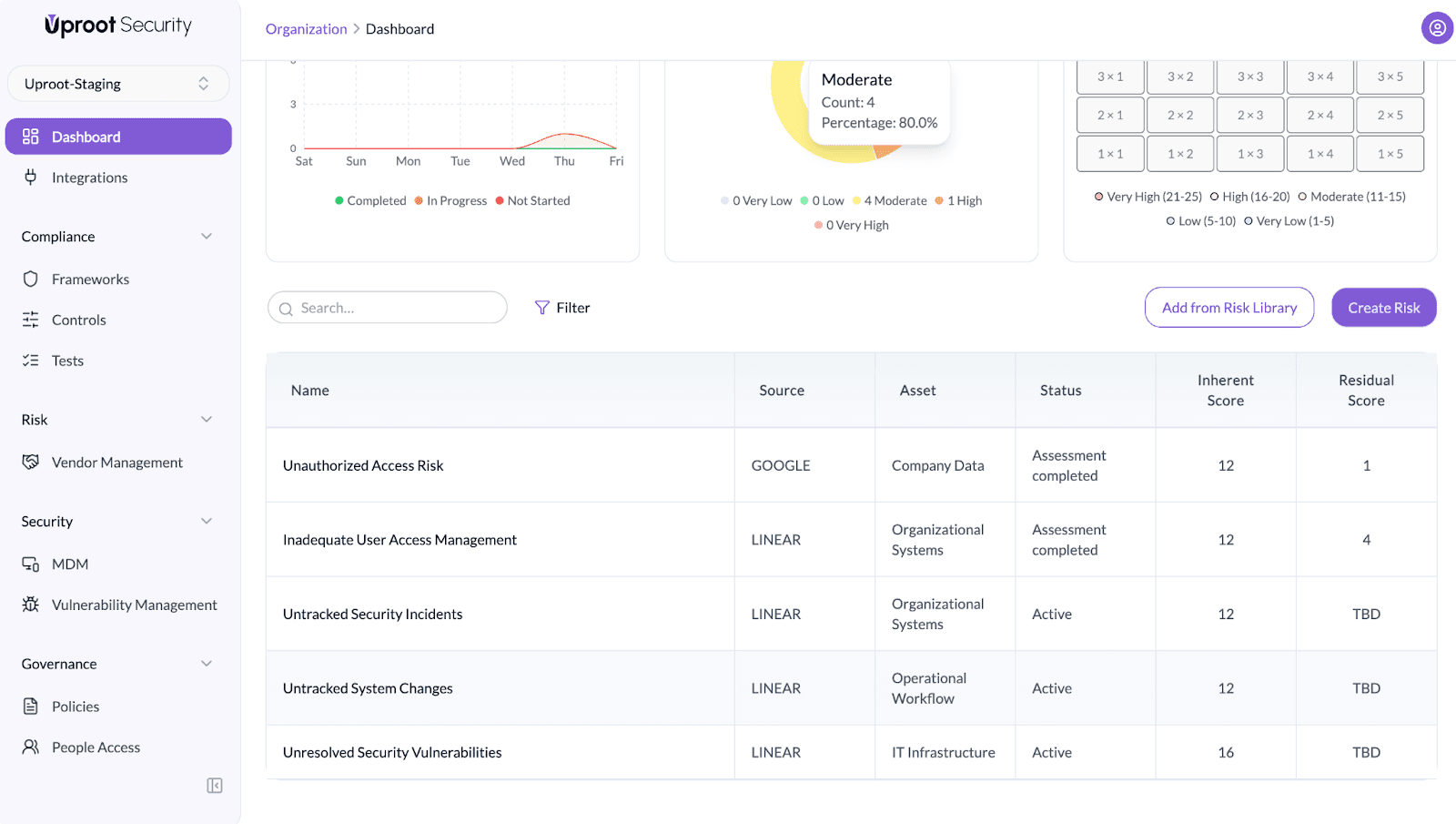
Each row represents a risk and includes the following fields:
- Name – Title of the risk
- Source – Origin of the risk
- Asset – Affected asset or system
- Status – Current risk status
- Inherent Score – The risk score calculated before applying any treatment or mitigation.
Impact × Likelihood = Inherent Score
- Residual Score – The risk score calculated after treatment and mitigation measures have been applied.
Residual Impact × Residual Likelihood = Residual Score
If the residual score hasn’t been assessed yet, it will display as “TBD” (To Be Declared).
Search and filter options are available to help locate specific risks.
Viewing Risk Details
Click on any risk from the list to open its detailed view.
How to Complete the Risk Assessment
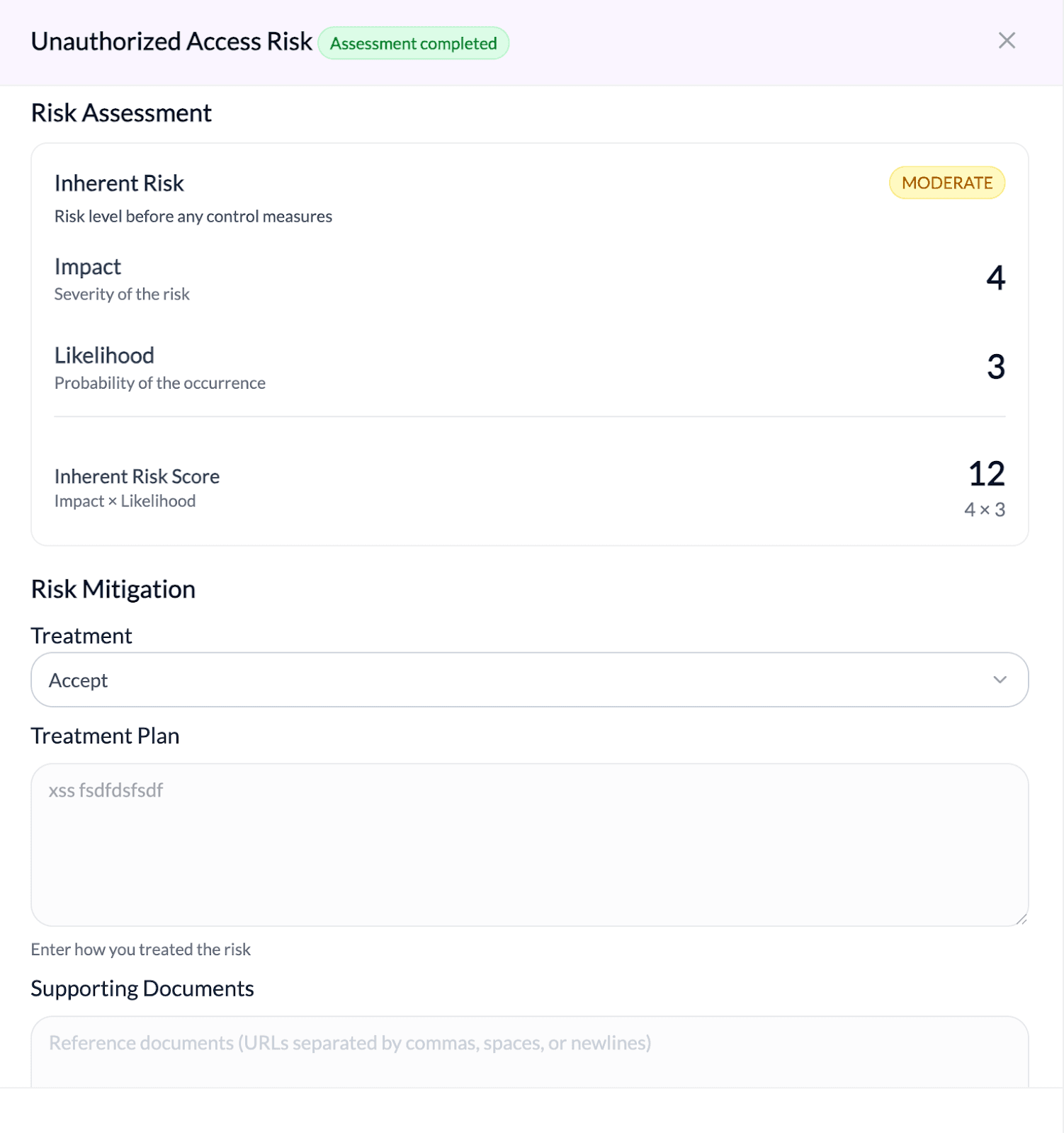
To complete the risk assessment, you must first select a Risk Treatment option. Risk treatment defines how the identified risk will be handled.
Available treatment options include:
- Mitigate – Reduce the risk by implementing controls or remediation actions.
- Transfer – Shift the risk responsibility to a third party.
- Accept – Acknowledge the risk without additional action.
- Avoid – Eliminate the activity or system causing the risk.
When Mitigate is selected:
- Provide a Treatment Plan describing how the risk will be reduced.
- Add Supporting Documents, such as remediation ticket links, change requests, or implementation evidence.
After submitting the required details, click Start Assessment to complete the evaluation. The Residual Risk Score will then be calculated based on the selected treatment and applied controls.
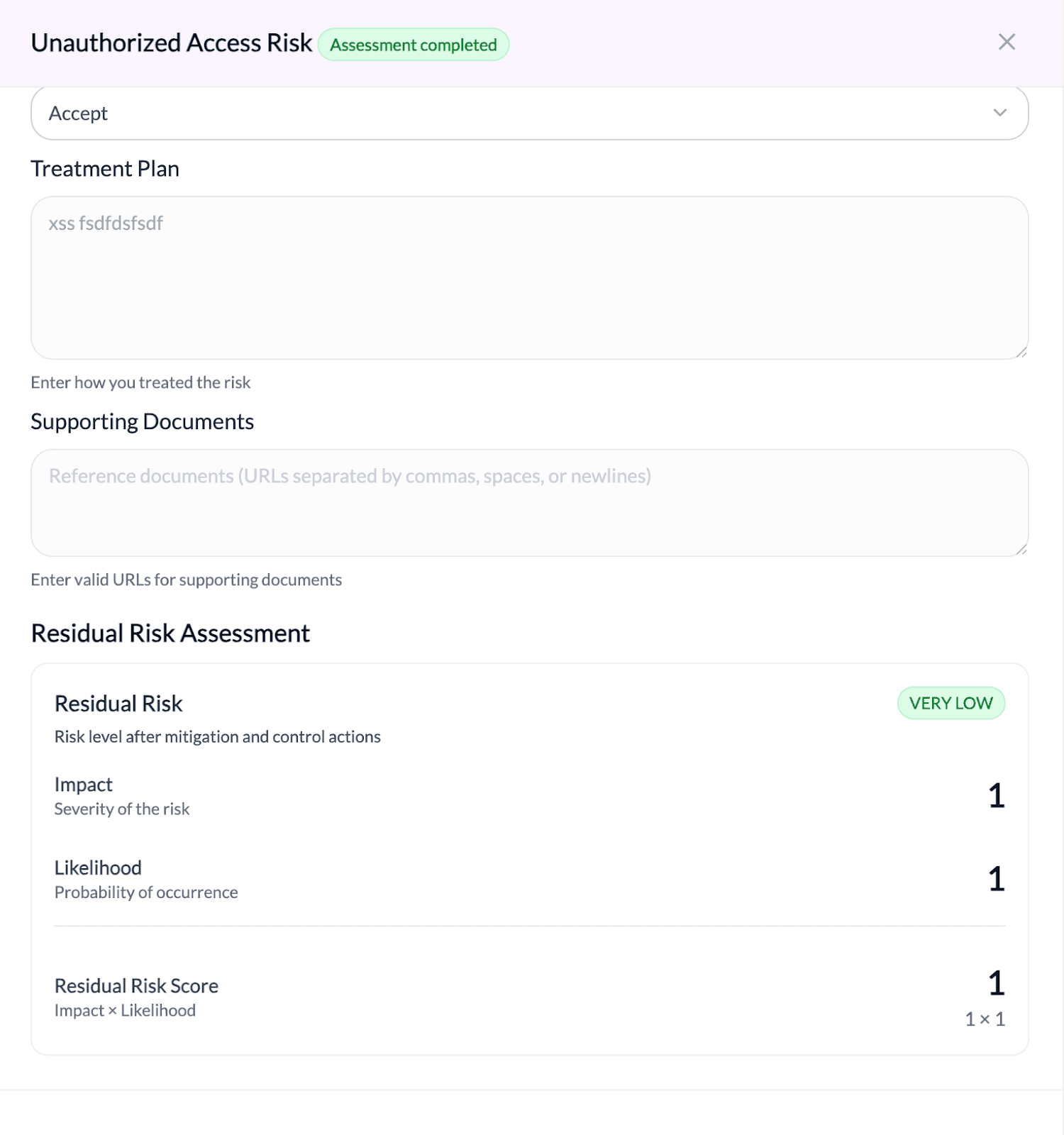
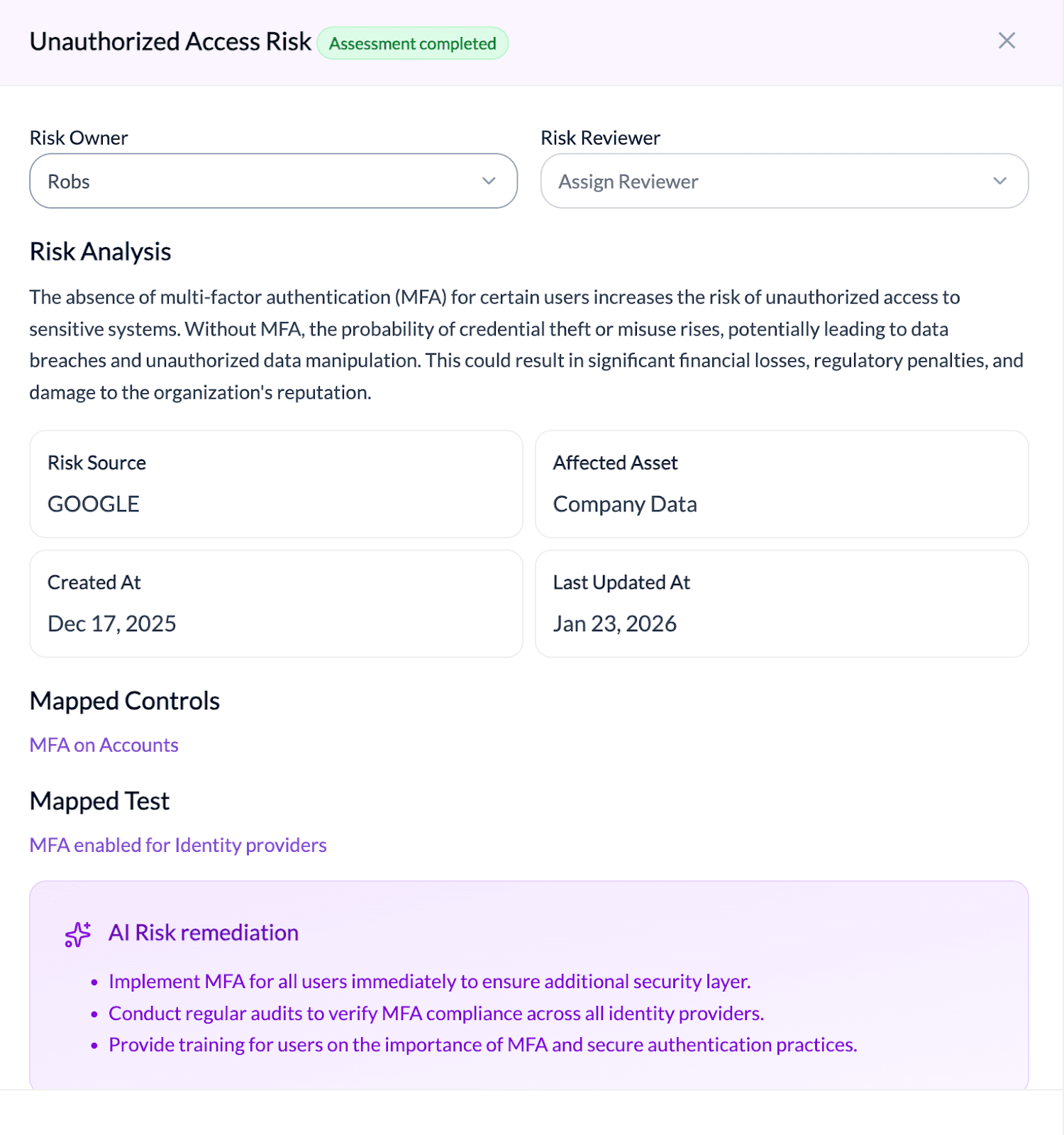
The risk detail page includes the following sections:
- Risk Owner and Reviewer – Displays the assigned owner responsible for managing the risk and the reviewer responsible for oversight.
- Risk Analysis – Provides a summary describing the nature of the risk and its potential impact.
- Risk Information – Shows key details such as the risk source, affected asset, and important timestamps.
- Mapped Controls – Lists the controls linked to the risk to reduce exposure.
- Mapped Test – Displays tests associated with the risk to validate control effectiveness.
- AI Risk Remediation – Provides system-generated recommendations to address the risk.
- Risk Assessment – Shows the inherent risk evaluation based on impact and likelihood before mitigation.
- Risk Mitigation – Documents the selected treatment approach, mitigation plan, and supporting evidence.
- Residual Risk Assessment – Displays the remaining level of risk after mitigation actions are applied.