
Getting Started with People Access
The People Access feature in the Uproot Security platform provides a centralized view of all users and their compliance status.
Users are automatically synced from your Identity Provider (IDP), ensuring records remain up to date and aligned with your organization’s directory.
People Tab
The People tab displays all synced users in a table format.
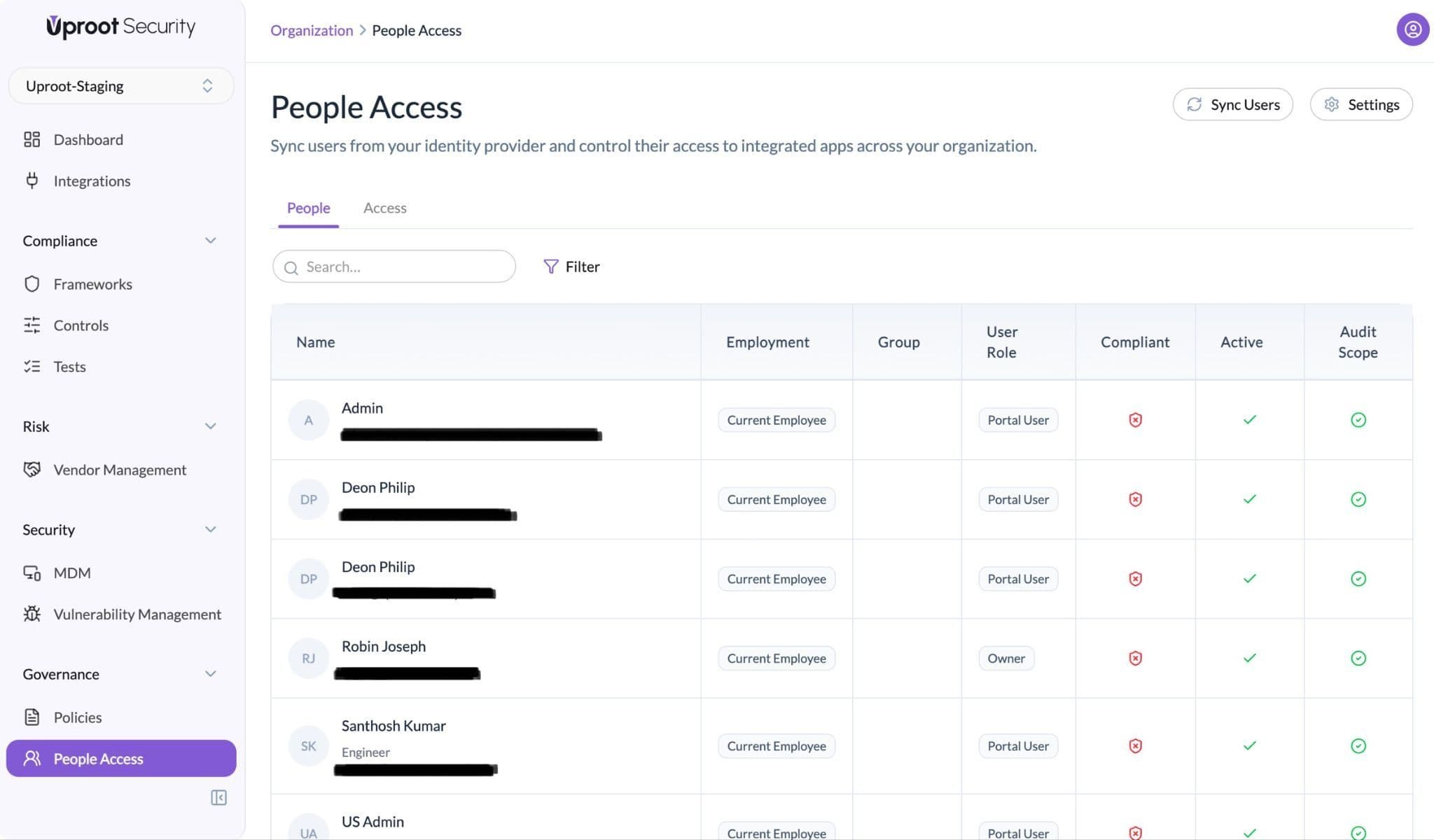
Each row represents a user and includes the following fields:
- Name – User’s name and email
- Employment – Current Employee, Former Employee, or Consultant
- User Role – Admin, Member, or Portal User
- Compliant – Overall compliance status
- Active – Indicates whether the user is currently active
- Audit Scope – In Scope or Out of Scope
People Access enables structured user management, automated syncing from the IDP, and centralized compliance tracking.
Viewing User Details
Click on any user to open the detailed profile view.
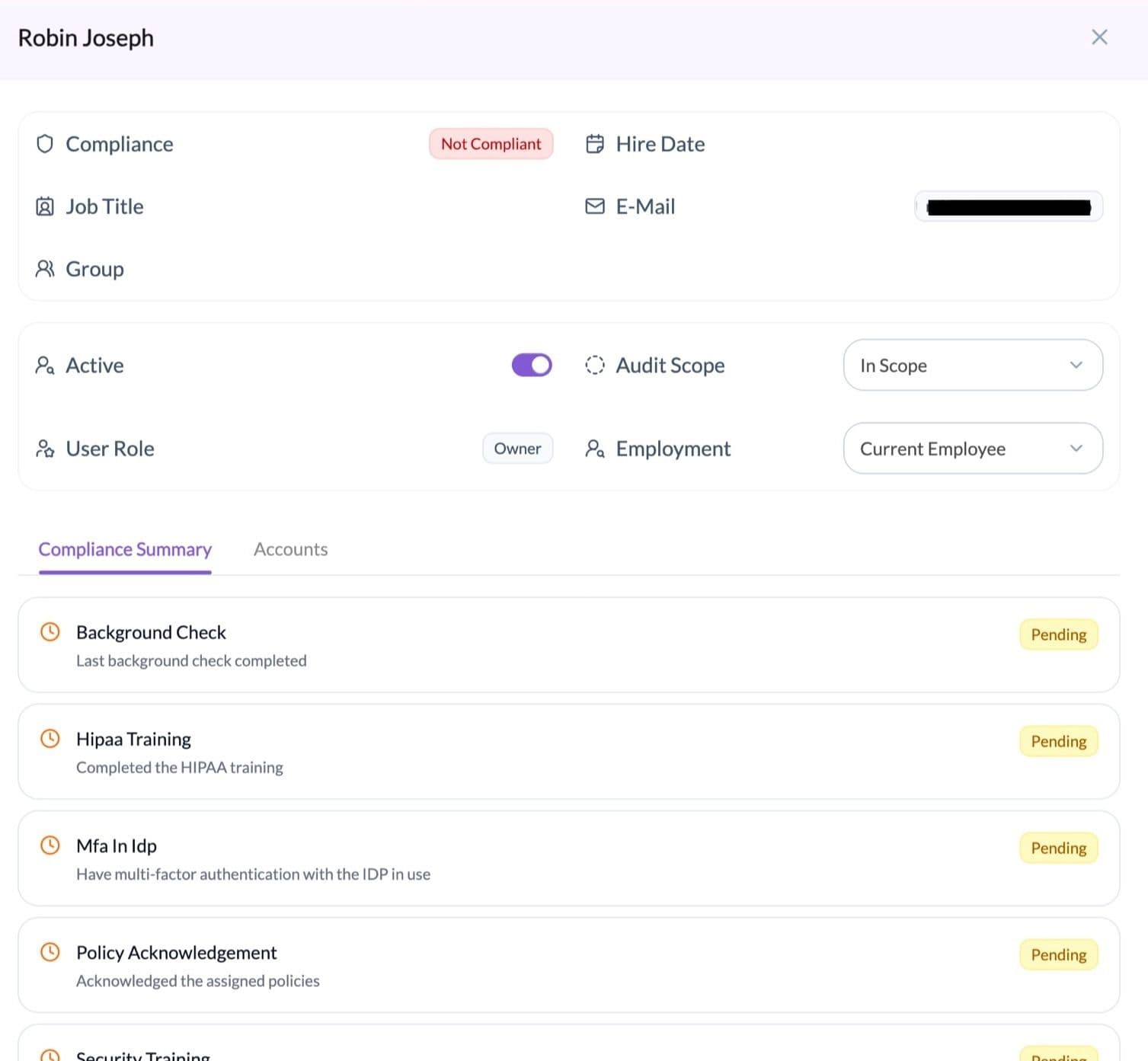
The user detail page includes the following sections:
1. Activity Status
Indicates whether the user is currently active in the system.
2. Audit Scope
Indicates whether the user is:
- In Scope – Included in audit evidence
- Out of Scope – Excluded from the current audit
Users who were active during the audit observation period should remain In Scope to maintain complete historical records.
3. User Role (Platform Role)
Defines the user’s access within the platform:
- Admin – Full platform control
- Member – Standard access
- Portal User – Default role assigned to all new users
Every user is assigned a Portal User by default.
4. Employment
Indicates the user’s classification:
- Current Employee
- Former Employee
- Consultant
5. Compliance Summary
Displays the user’s compliance requirements and their current status, such as:
- Background Check
- Training
- MFA in IDP
- Policy Acknowledgement
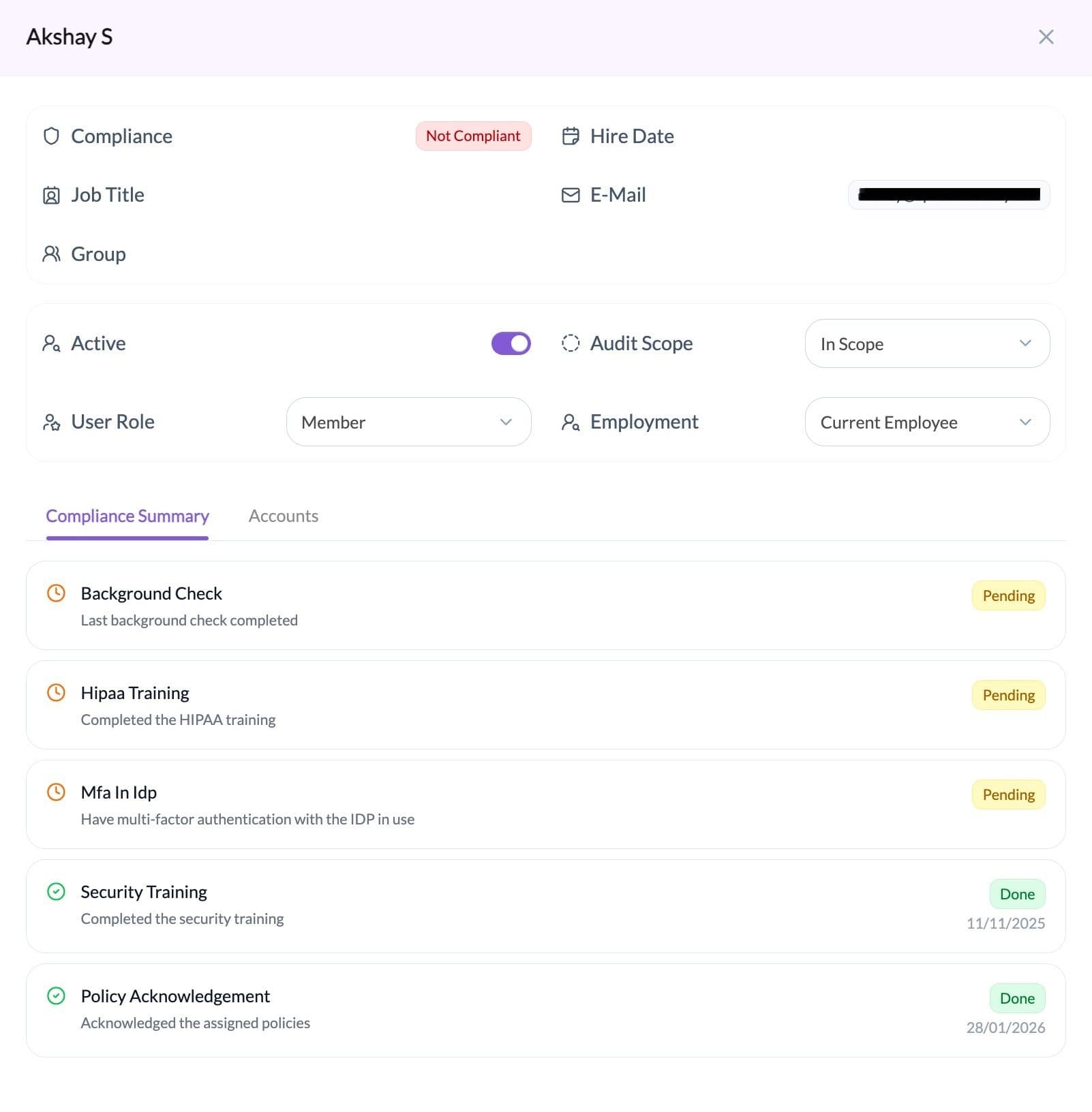
Each requirement shows whether it is completed or pending.
6. Accounts
Displays the user’s access across integrated tools.
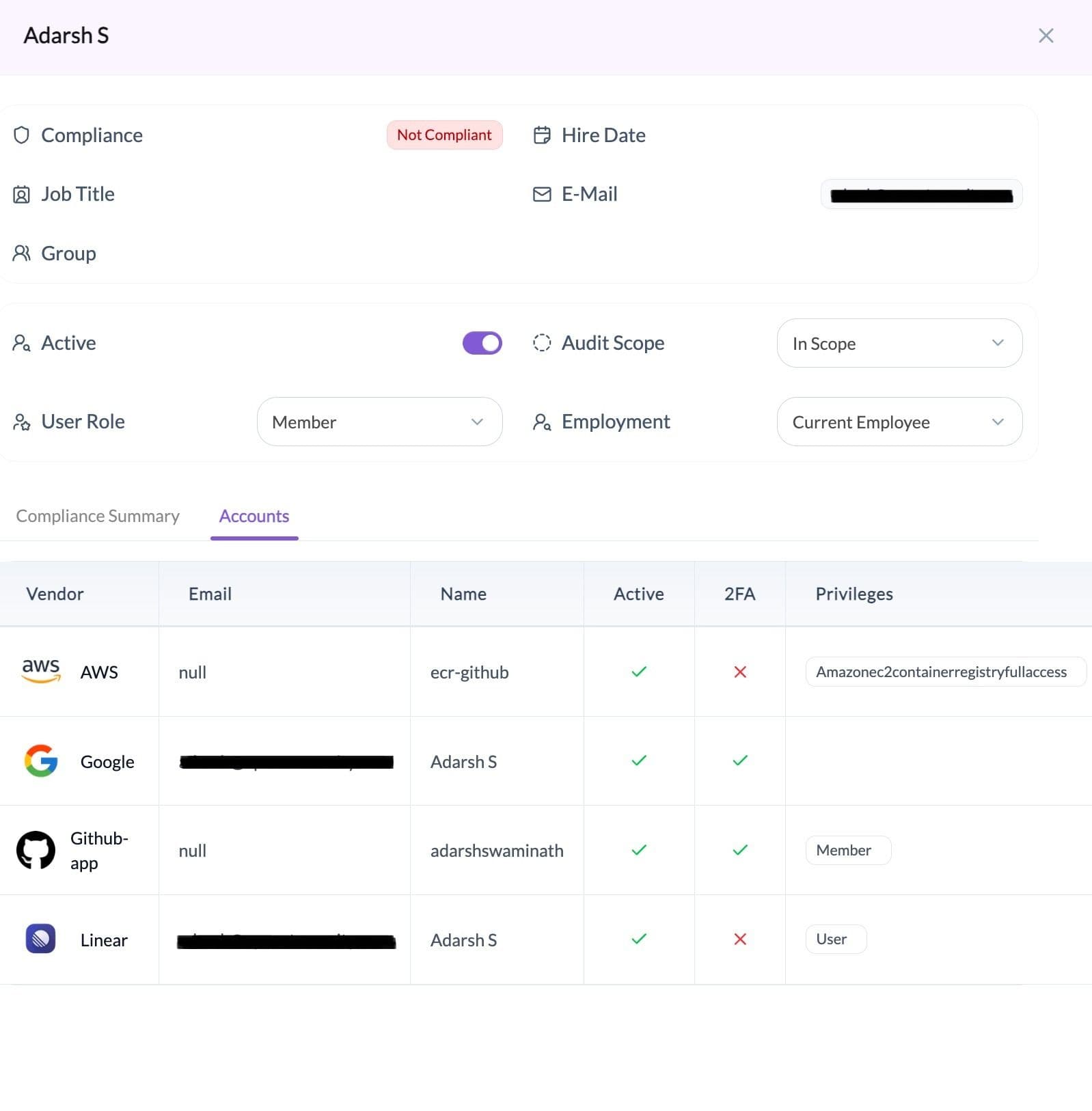
For each account, the platform shows:
- Vendor
- Active status
- 2FA status
- Privileges
This section supports centralized user access reviews.
Access Tab
The Access tab provides a centralized view of application accounts across integrated tools.
It displays account ownership, assigned roles, MFA status, and audit scope in one place.
Access Table
The Access tab displays application accounts in a table format.
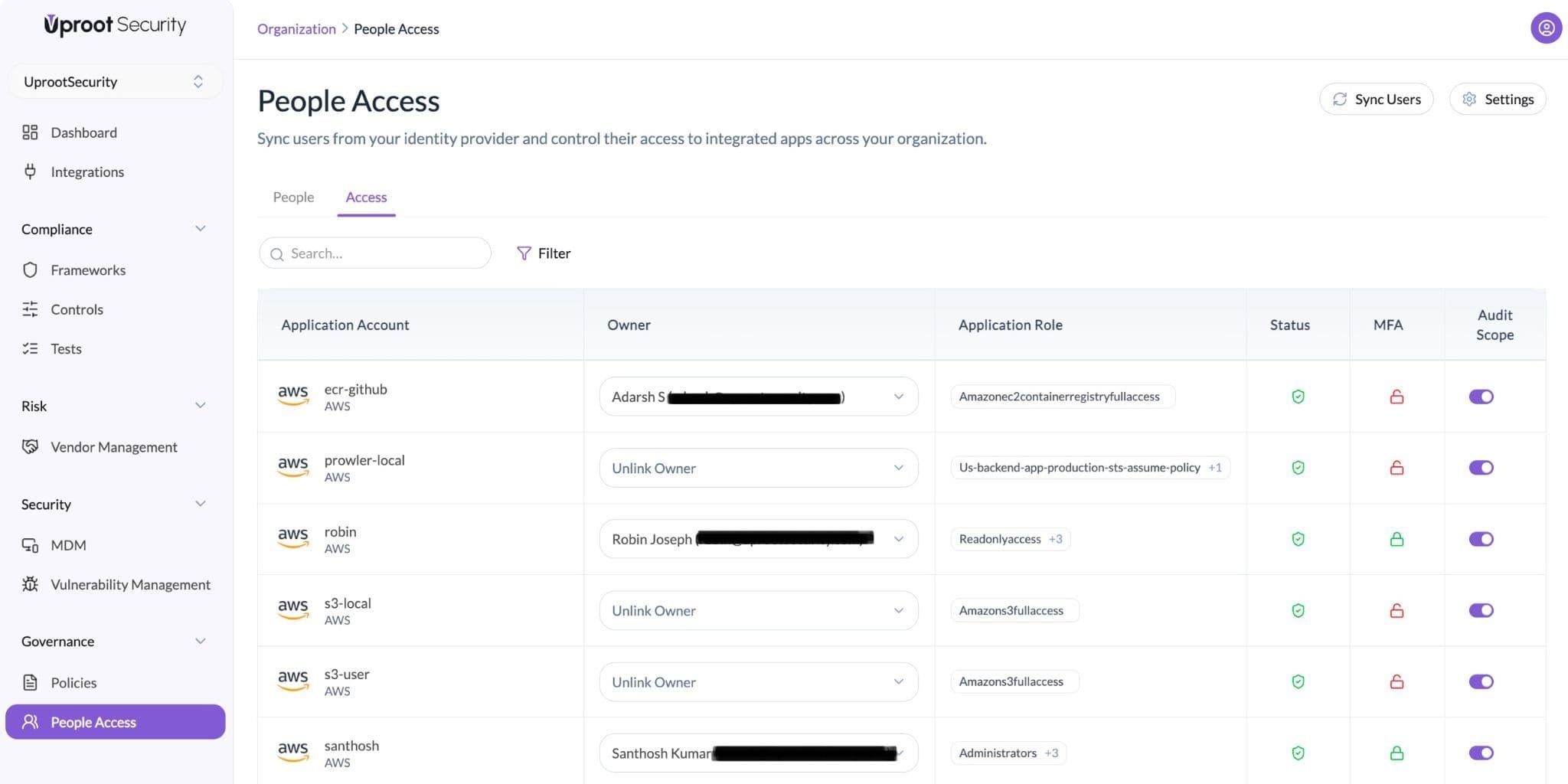
Each row represents an application account and includes the following fields:
- Application Account – Name of the account and associated vendor
- Owner – Assigned user responsible for the account
- Application Role – Role or permission assigned within the application
- Status – Indicates whether the account is active
- MFA – Shows whether multi-factor authentication is enabled
- Audit Scope – Toggle to include or exclude the account from audit evidence
Search and filter options are available to locate specific accounts.
The Access tab centralizes application account visibility and supports structured access tracking across integrated tools.
Notifications
The platform supports alerts for access-related changes to improve visibility and accountability.
Notifications can be accessed and configured as follows:
- Navigate to People Access.
- Click on Settings.
- Select Notification Setup.
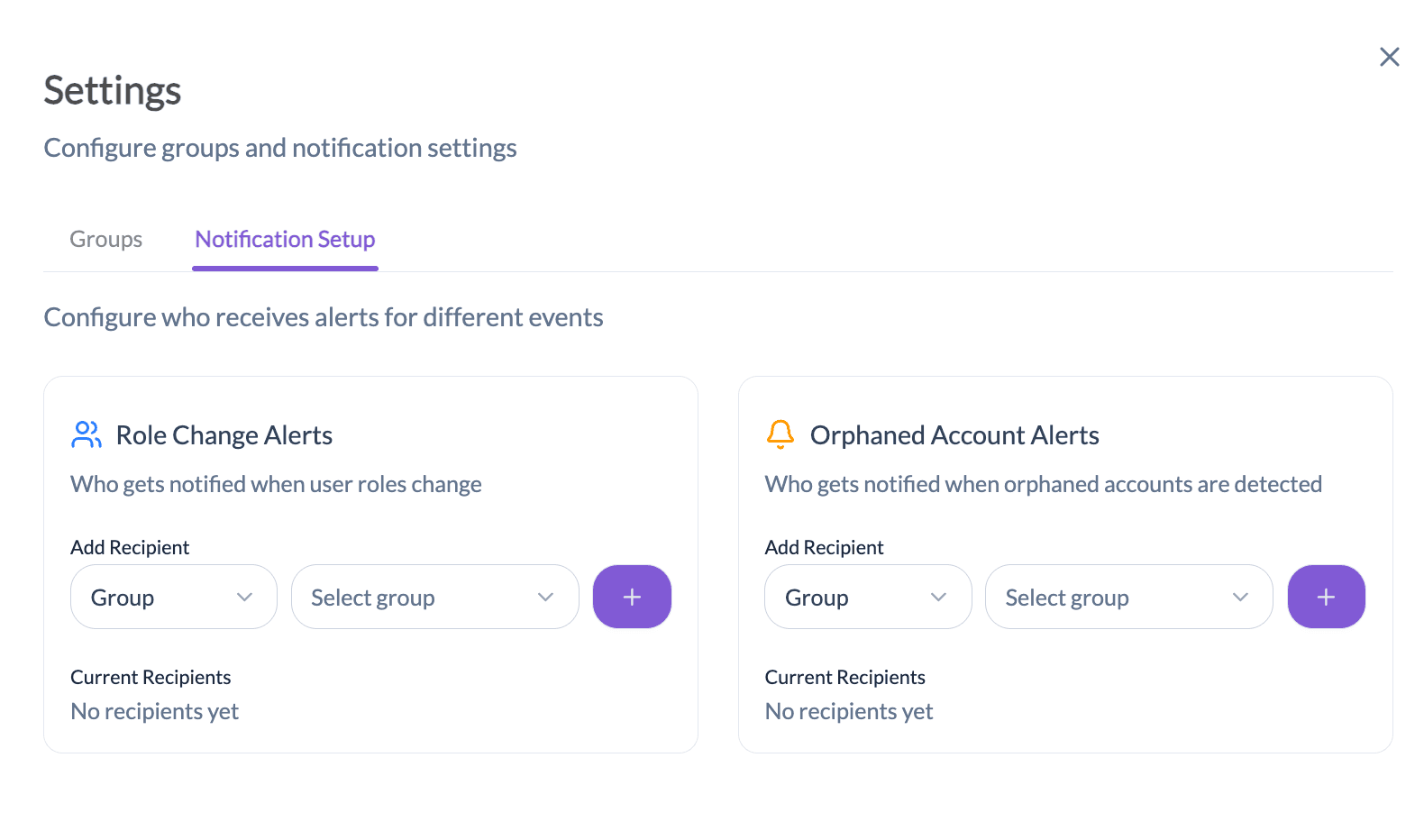
Role Change Alerts
Notifications can be configured to alert users or groups when:
- A user’s application role changes
- Privileged access is modified
Orphaned Account Alerts
An orphaned account is an application account that does not have an assigned owner.
Notifications can be configured to alert users or groups when:
- An application account does not have an assigned owner
This helps ensure all accounts have clear ownership.