The Vulnerability Management feature in the Uproot Security platform allows organizations to identify, track, and remediate security vulnerabilities across web applications, cloud infrastructure, network, or mobile applications. It provides a centralized workflow for creating targets, running assessments, reviewing findings, and managing remediation efforts, giving teams clear visibility into vulnerability status and remediation progress.
Vulnerability management starts by defining a target and running assessments to find security vulnerabilities.
Creating a Target
A target represents the asset you want to assess for vulnerabilities, such as a web application, cloud infrastructure, network, or mobile application.
To create a new target:
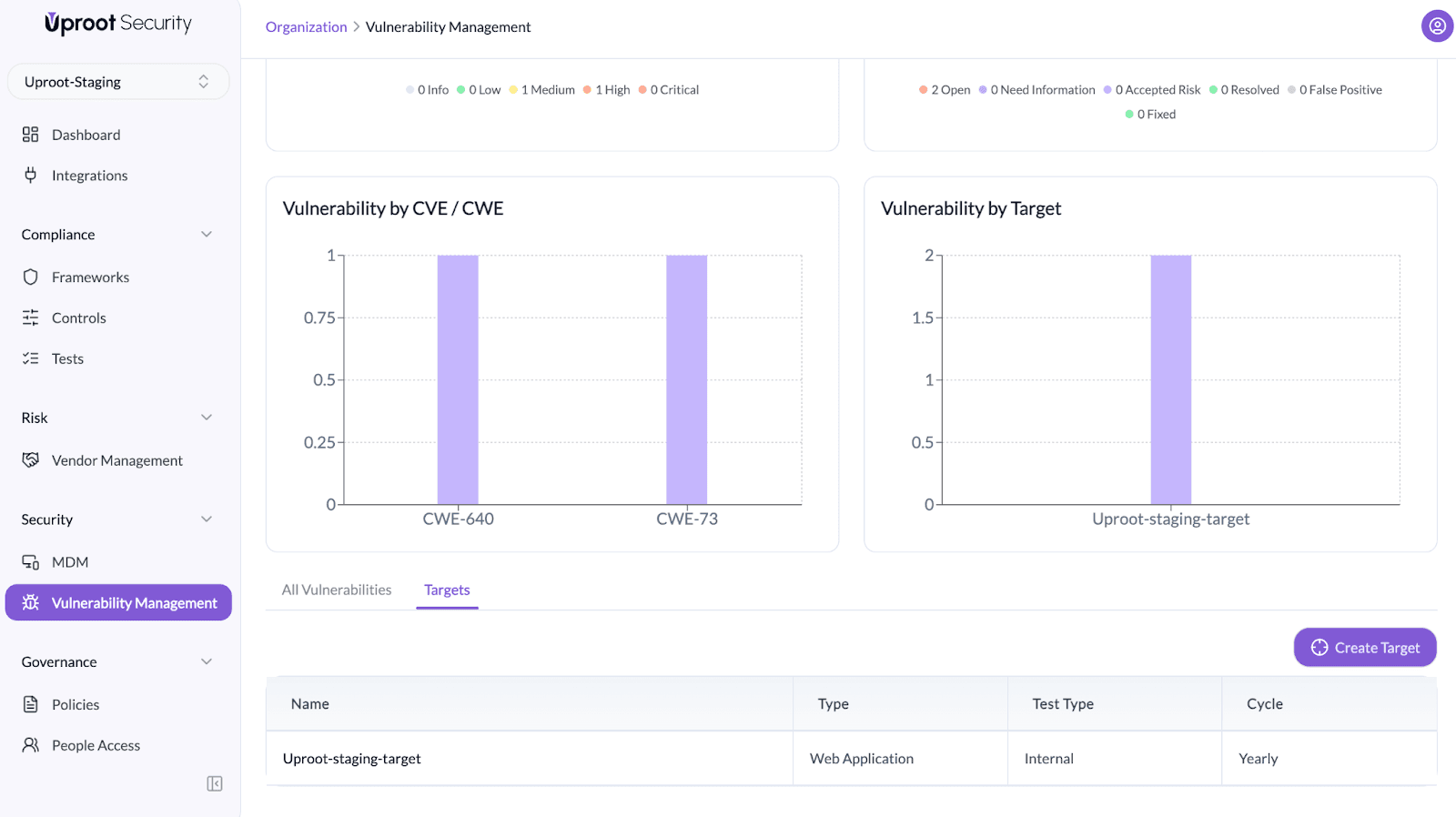
- Navigate to Vulnerability Management.
- Open the Targets tab.
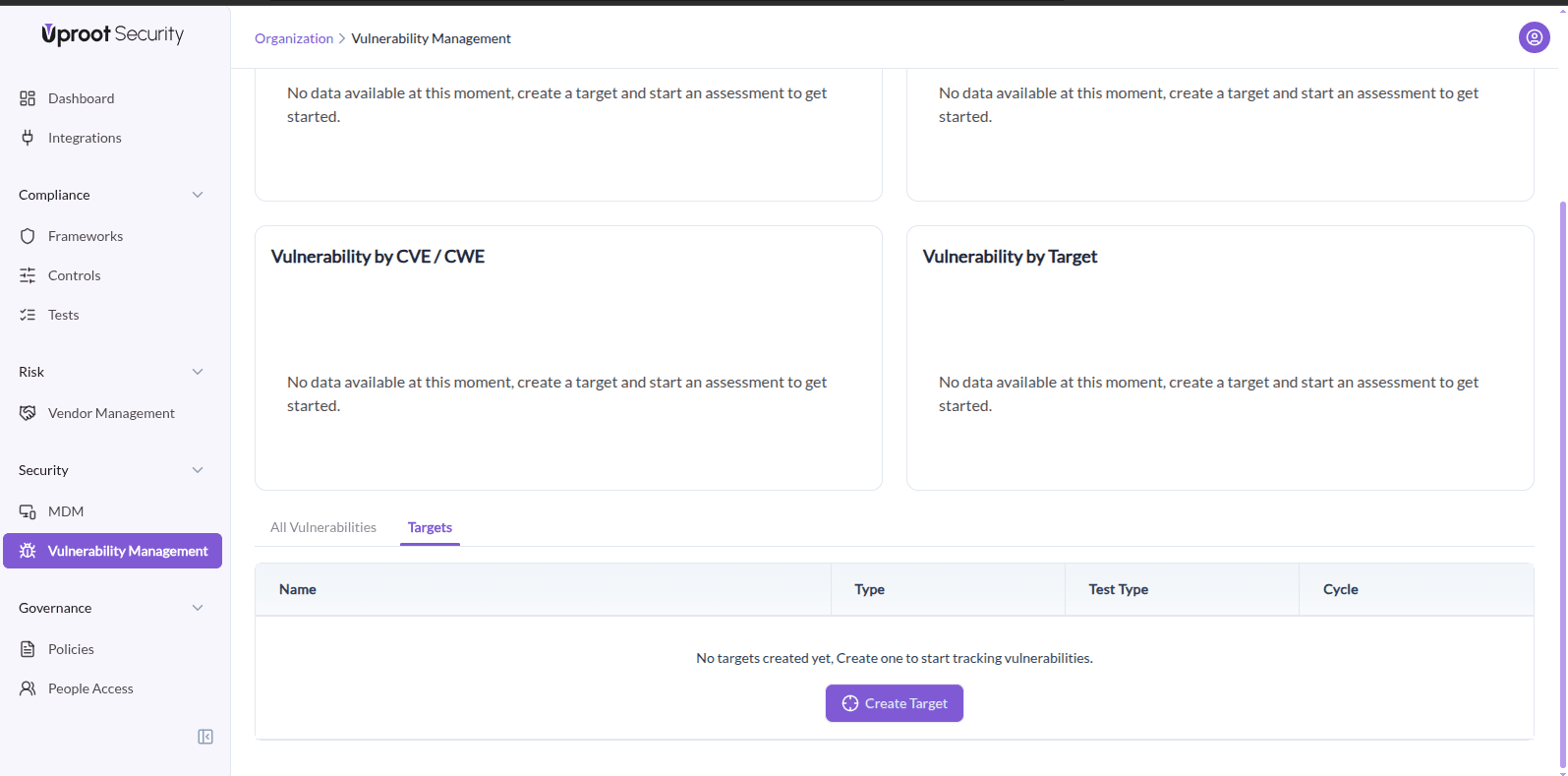
- Click Create Target.
- In the dialog, select the Target Type: Web Application, Cloud Infrastructure, Network, or Mobile Application.
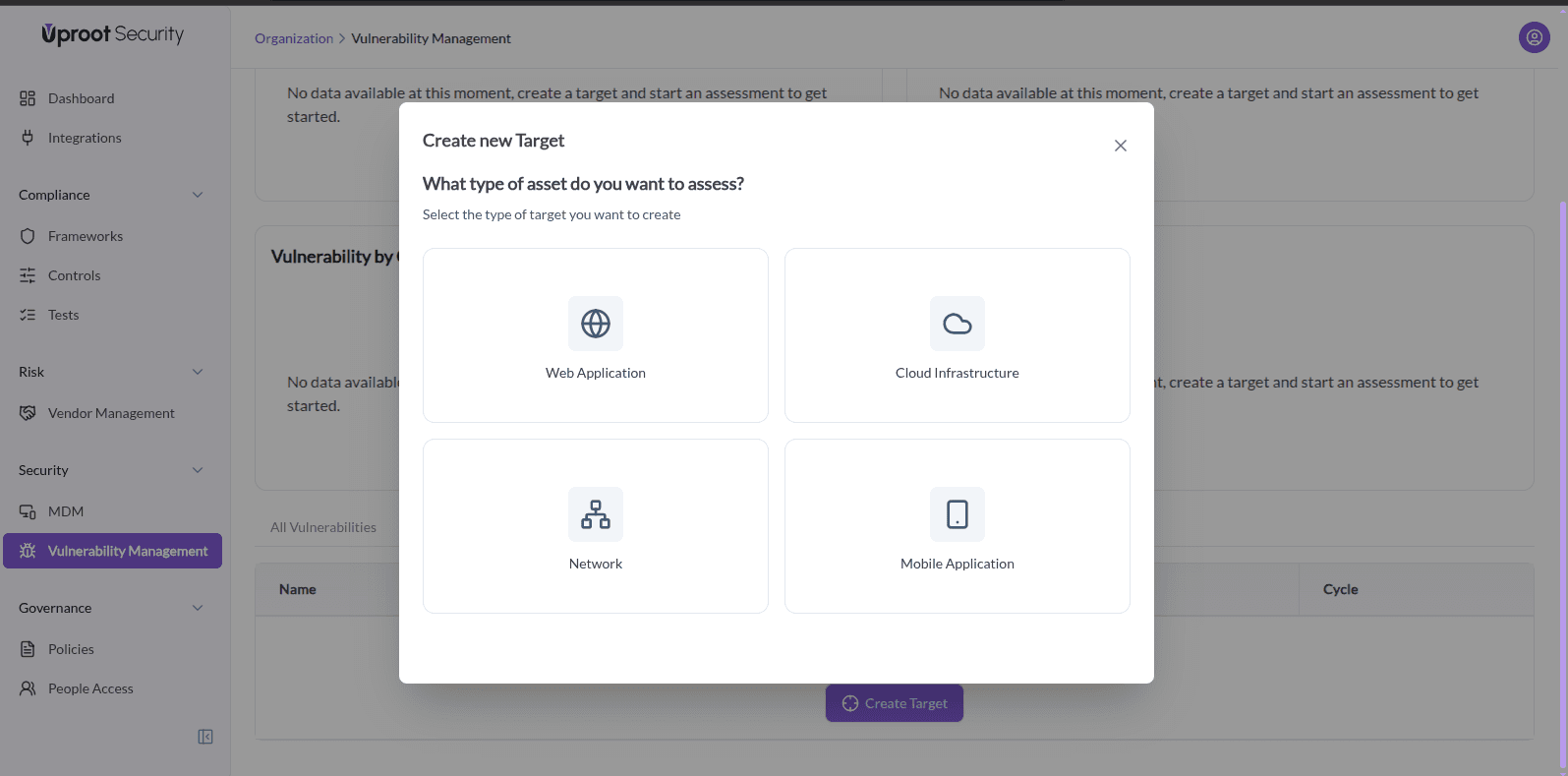
- Enter Target Details:
- Target Name – a unique name to identify the asset
- Description (optional) – additional context
- Test Type – Internal (your team) or External (Uproot Security)
- Test Cycle – how often the target should be tested
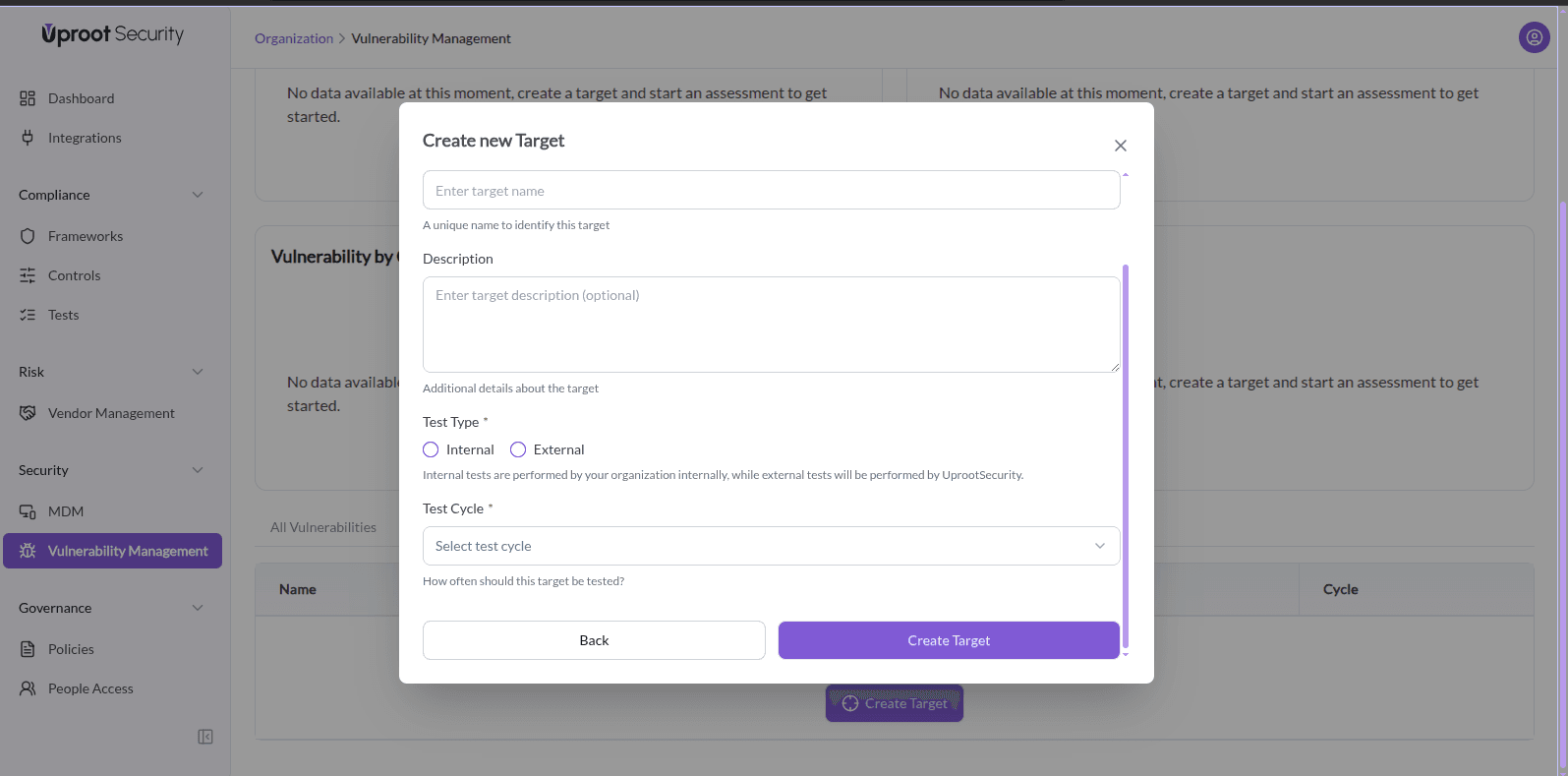
- Click Create Target to save.
Once created, the target becomes the central entity for tracking assessments and vulnerabilities.
Targets Overview
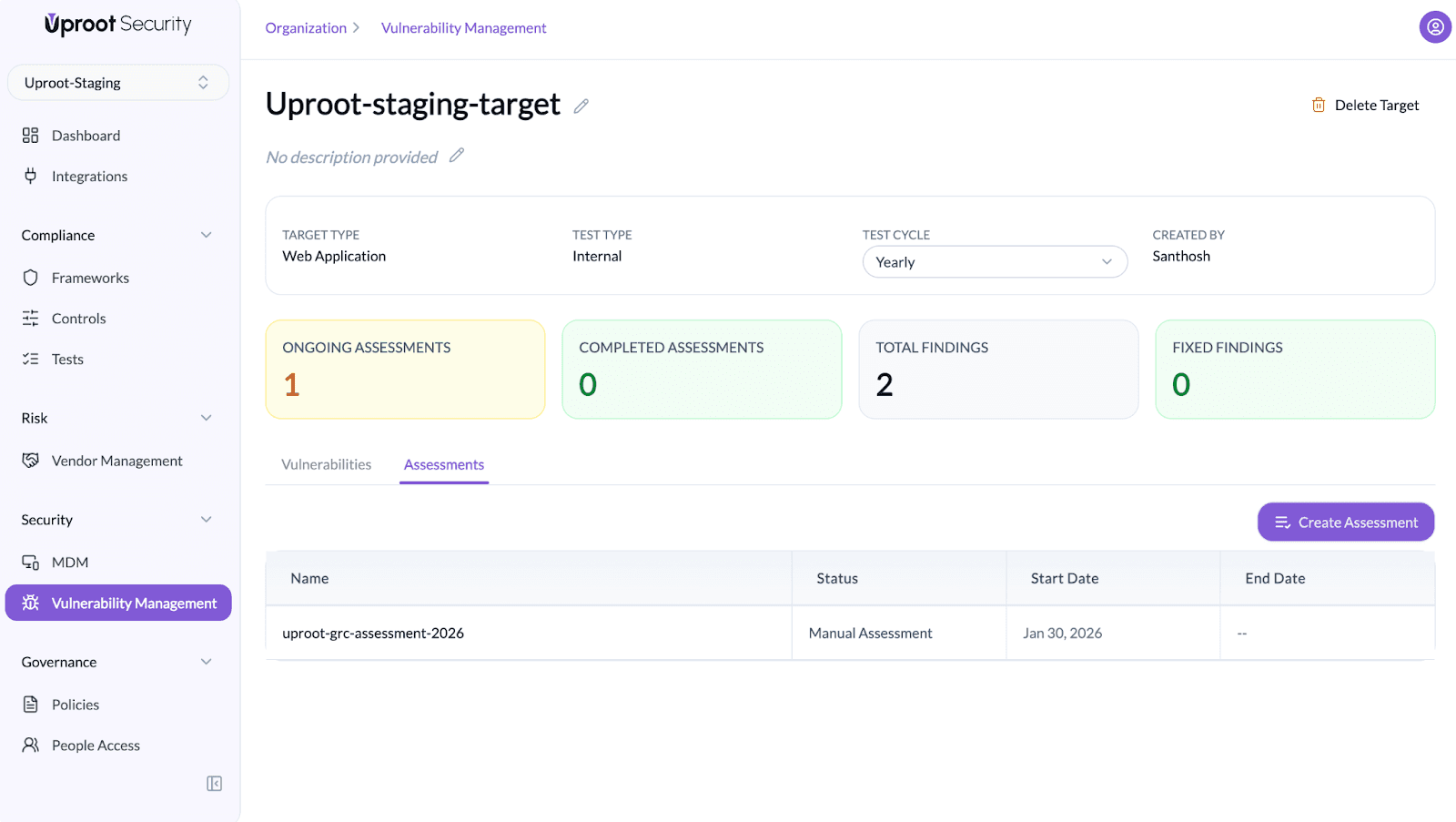
Each target provides a summary view that includes:
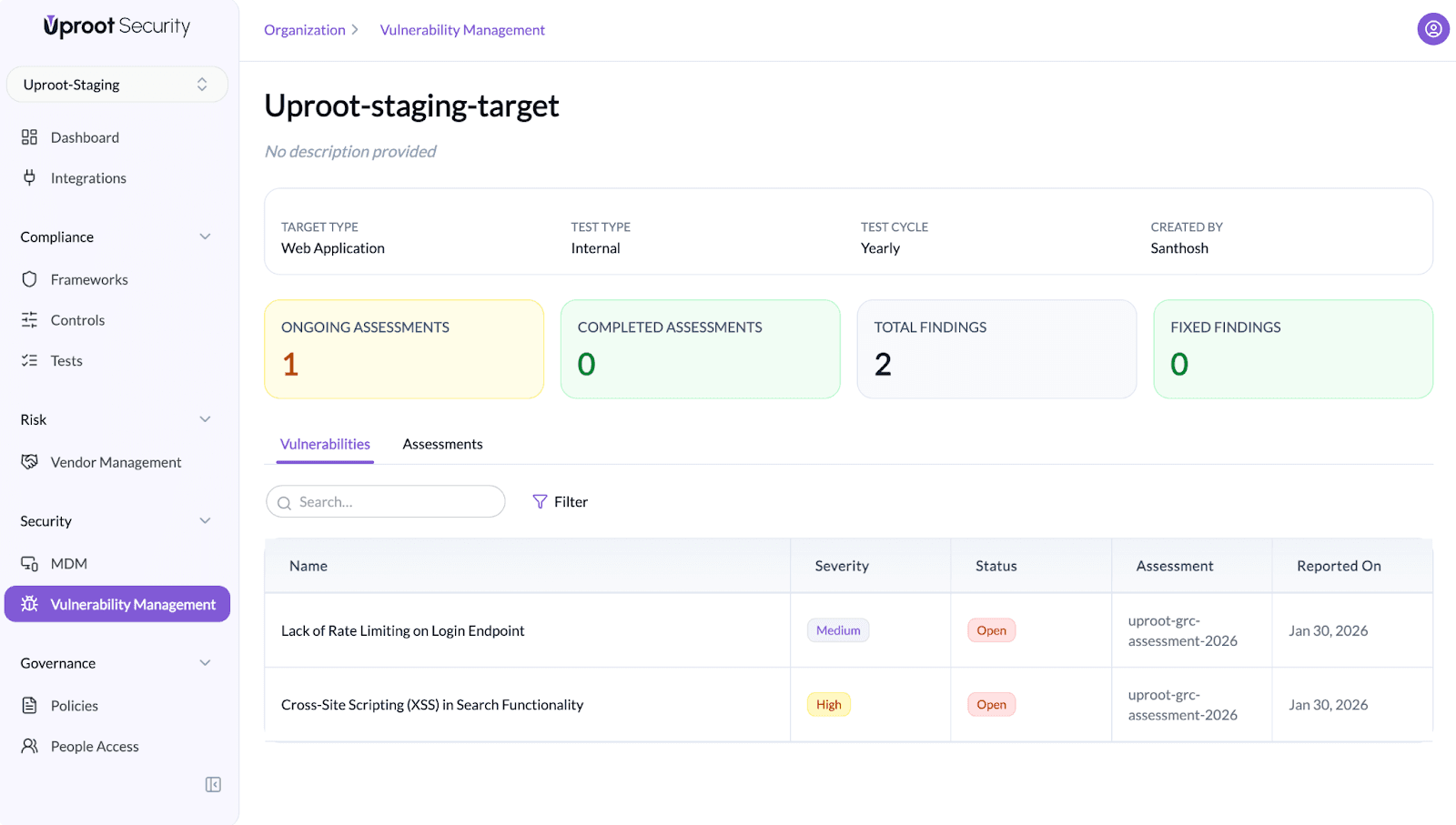
Assessments
Assessments represent individual security testing efforts performed against a single target. They can be conducted in two ways:
- Internal assessments – Performed by the client’s internal security or engineering team.
- External assessments – Performed by Uproot Security.
To create an assessment:
- Navigate to Vulnerability Management.
- Select the target application you want to assess from the target list.
- Open the Assessments tab for the selected target.
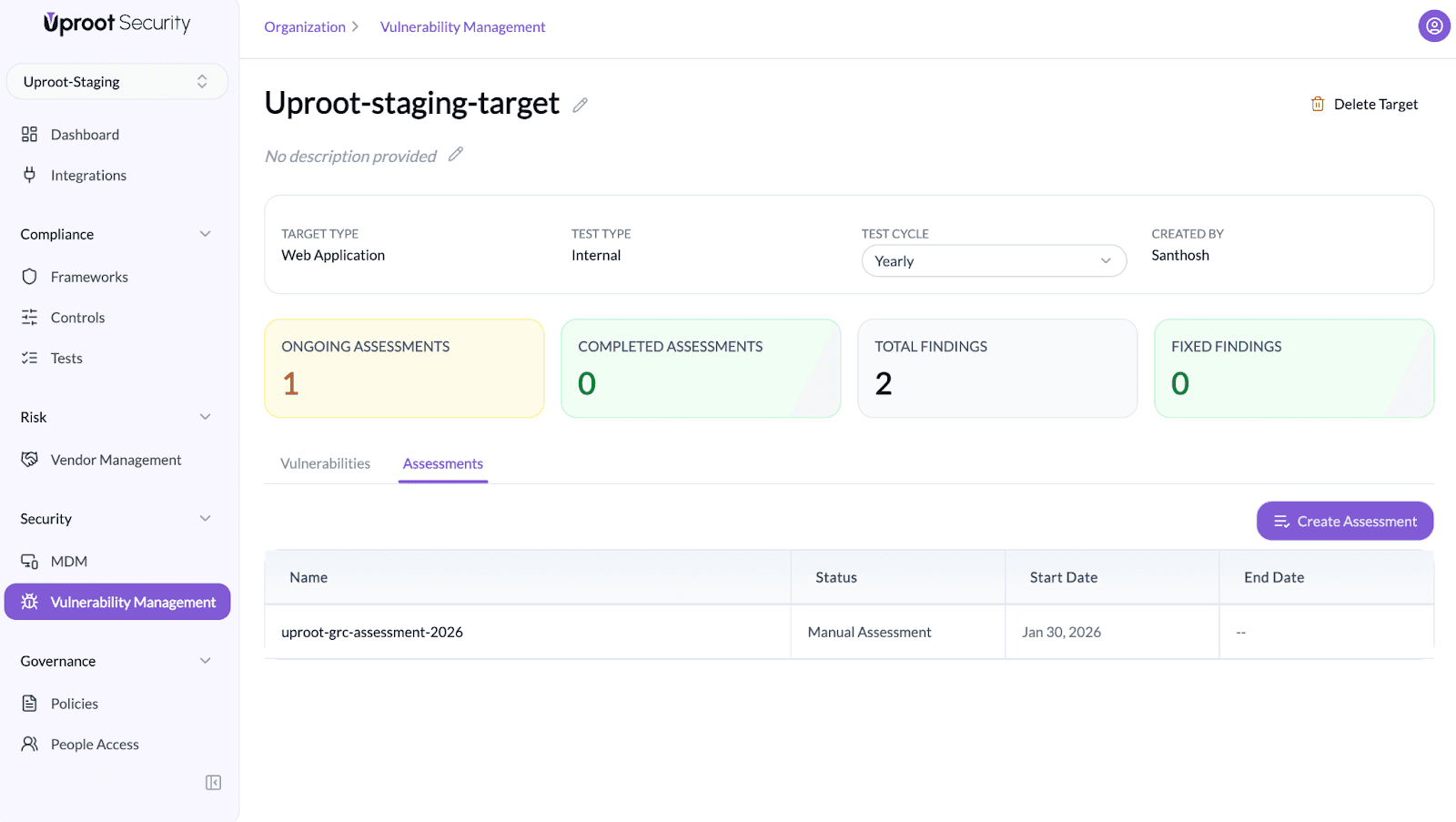
- Click Create Assessment.
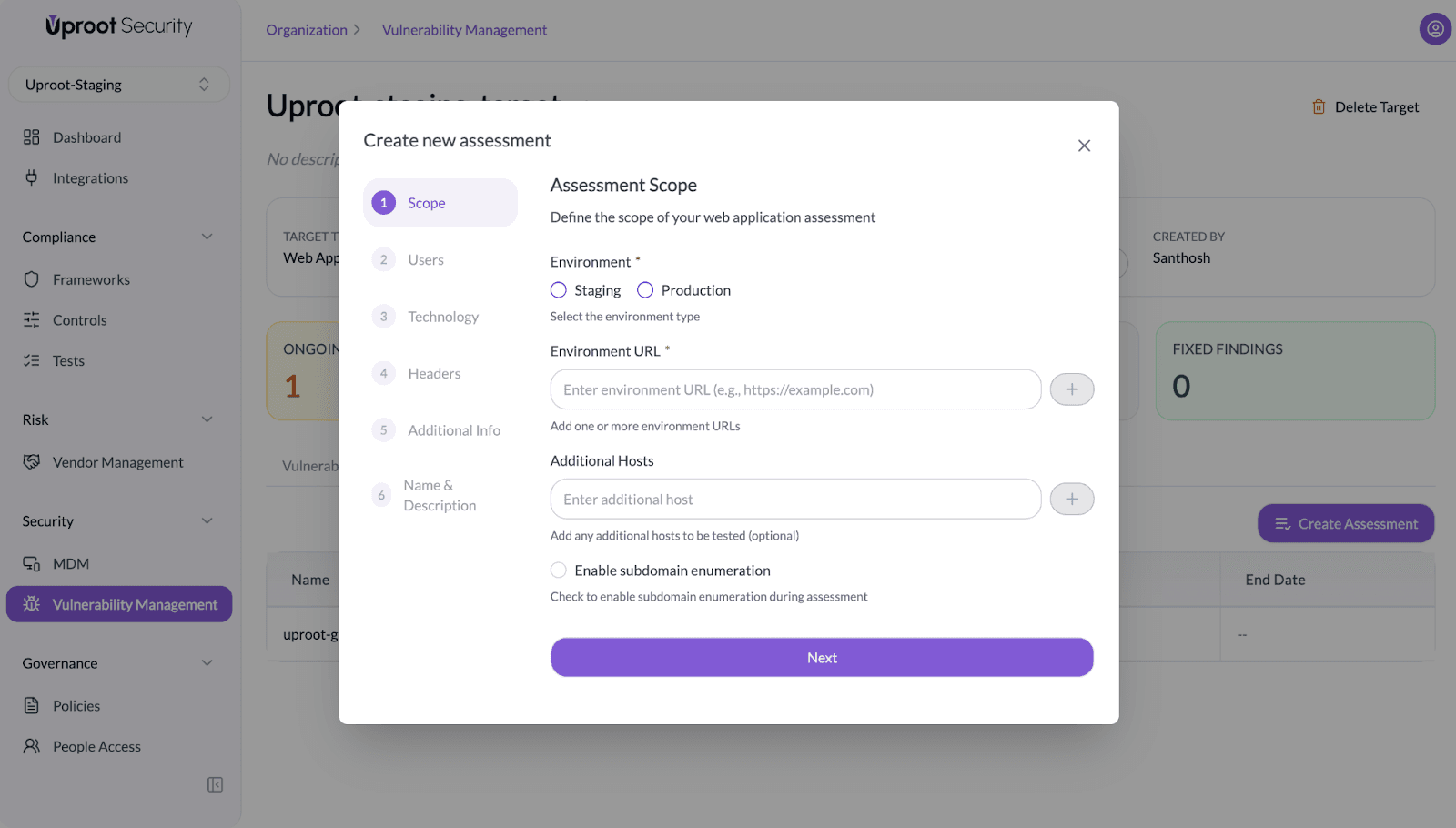
- In the Scope step:
- Select the environment type (Staging or Production).
- Enter the Environment URL.
- Add additional hosts, if required.
- (Optional) Enable subdomain enumeration, if applicable.
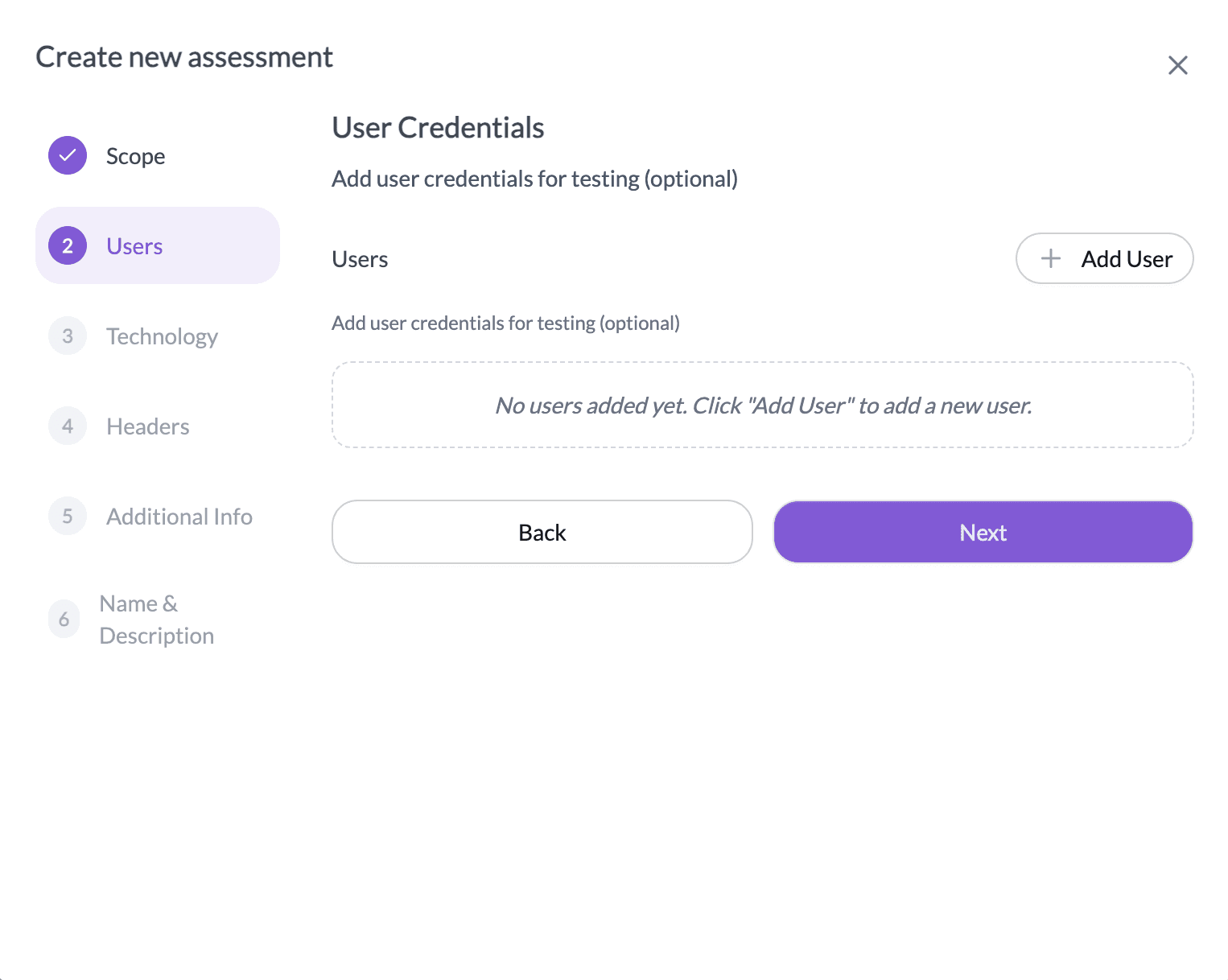
- In the Users step, add user credentials for testing (optional).
- In the Technology step:
- Select the databases used by the application.
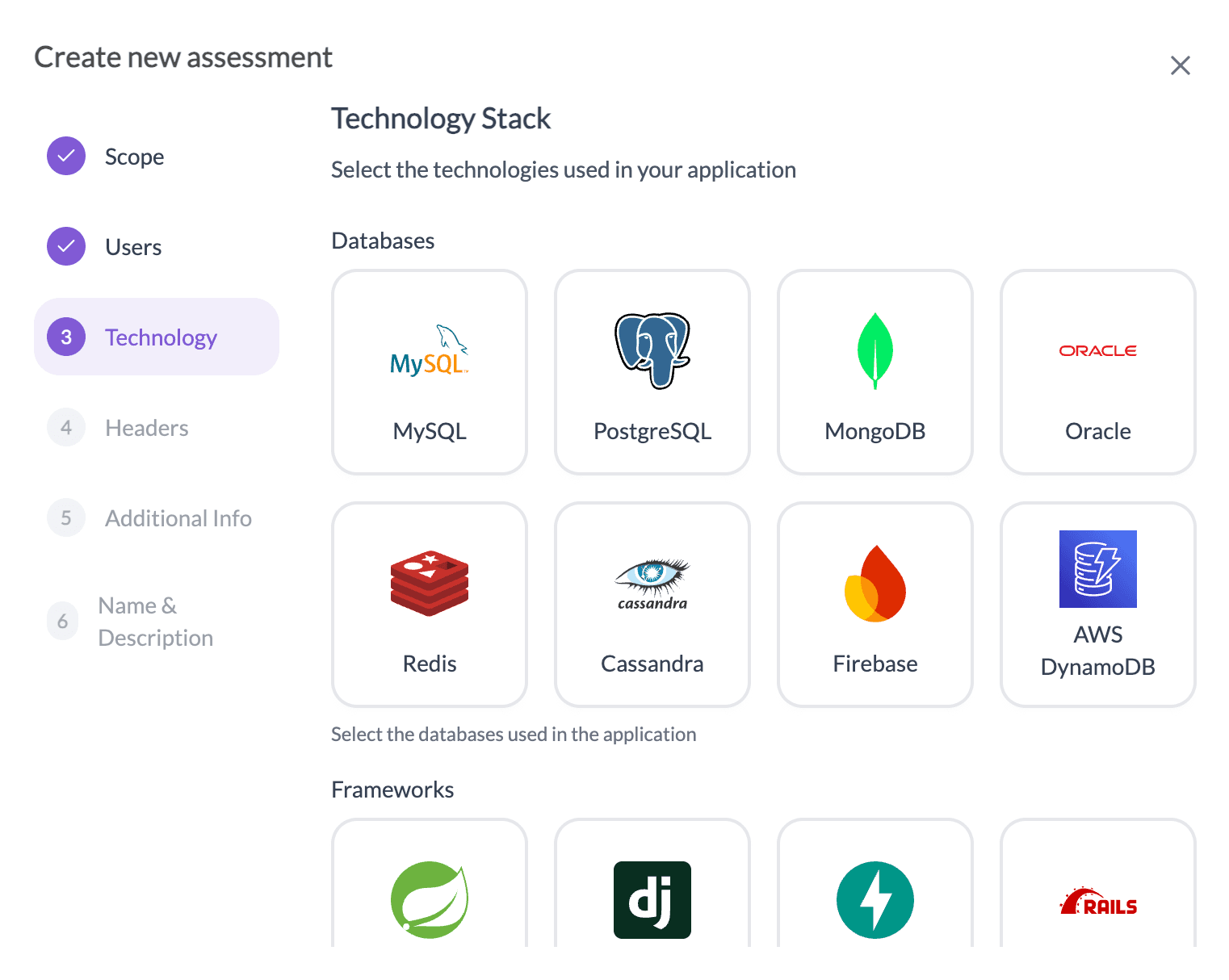
- Select the frameworks used by the application.
- Select the programming languages used by the application.
- Select the cloud infrastructure used by the application.
- Select the payment gateways integrated with the application.
- Select the CMS used by the application, if applicable.
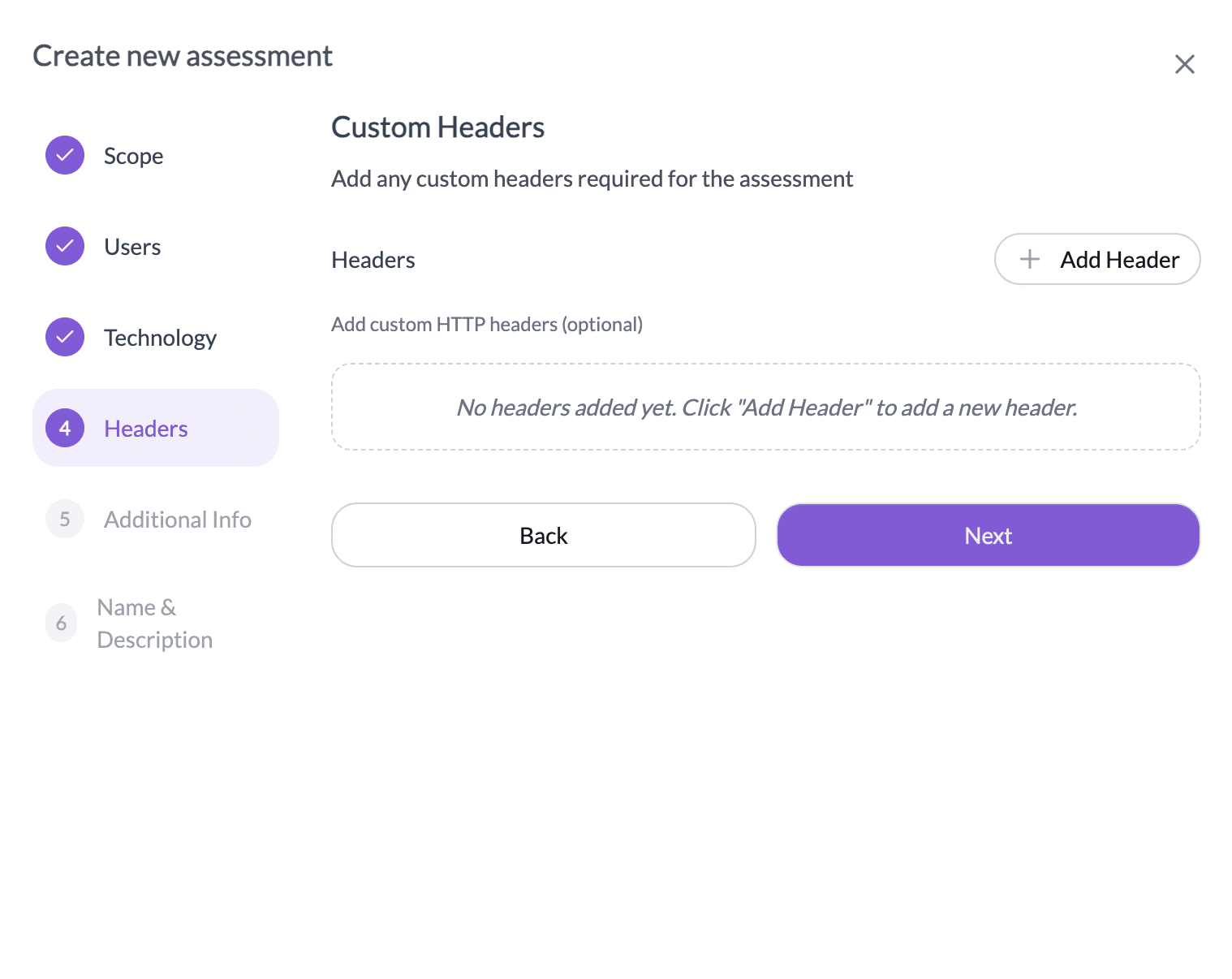
- In the Headers step, add custom HTTP headers required for the assessment (optional)
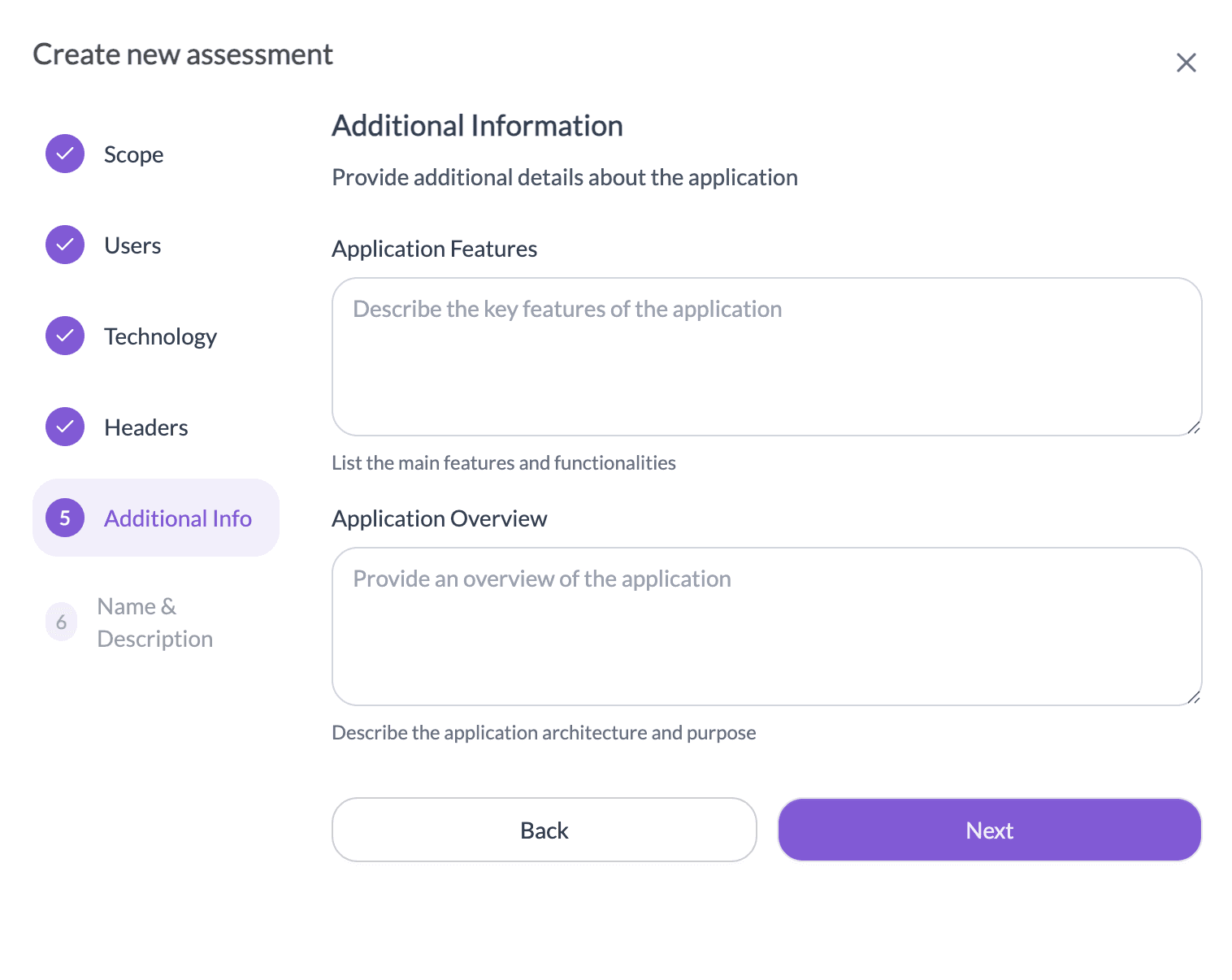
- In the Additional Information step:
- Describe the key features of the application.
- Provide an overview of the application and its purpose.
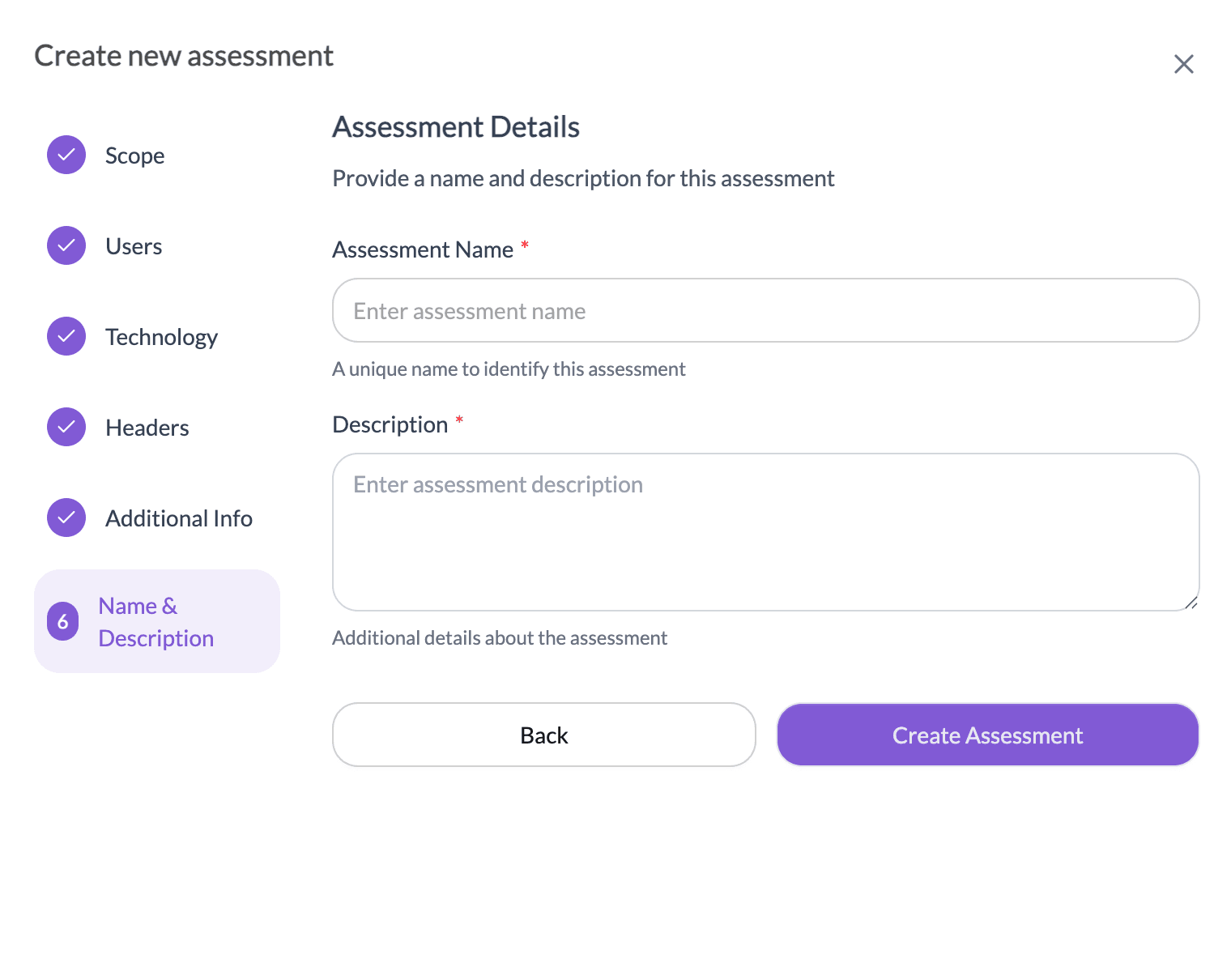
- In the Name & Description step, enter a unique Assessment Name and Description.
To view assessments for a target:
- Open the target from the Targets list.
- Navigate to the Assessments tab.
Assessment Details
The assessment view provides a comprehensive overview of scope, technology, and application context.
Scope
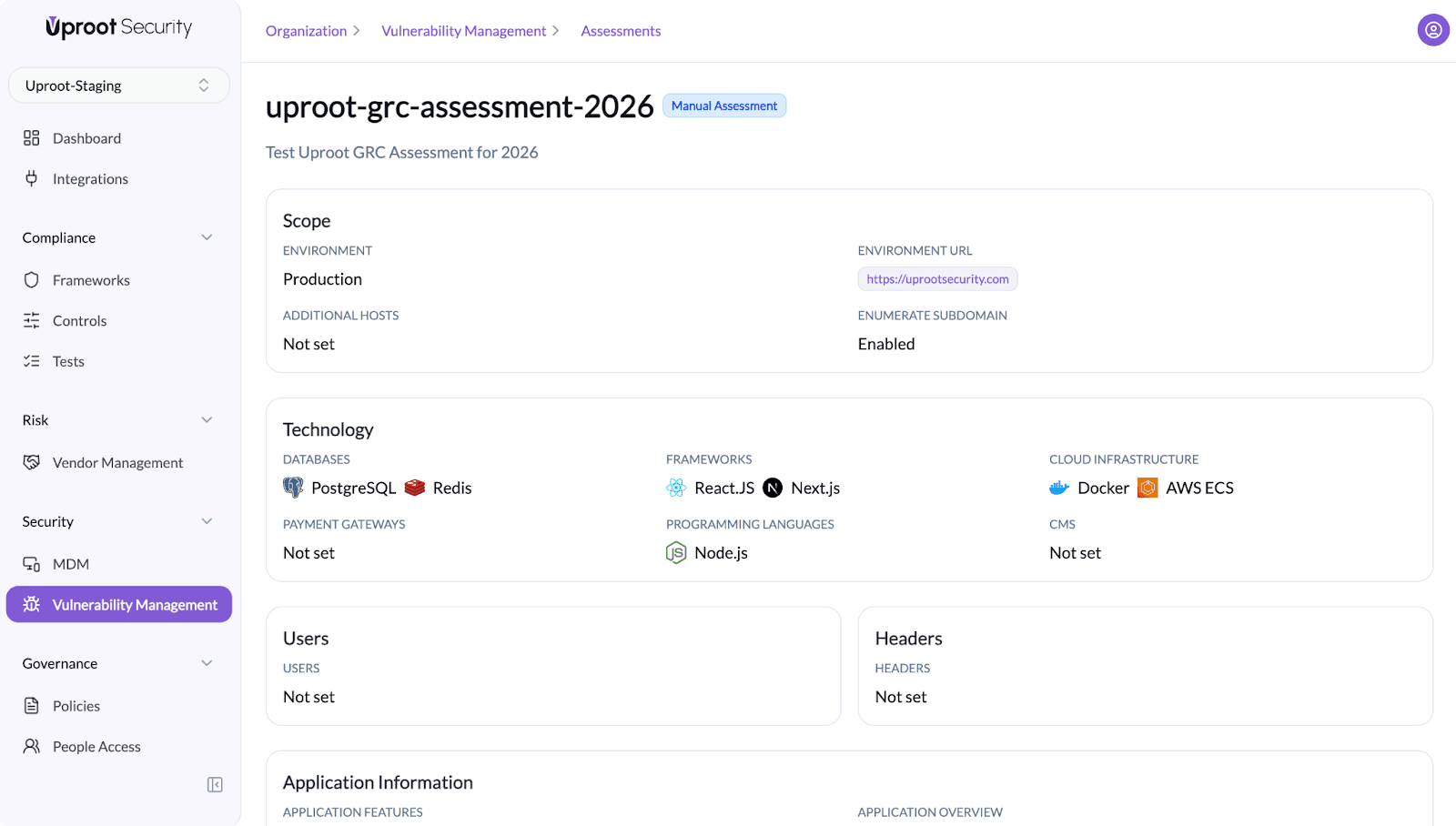
Includes:
- Environment (e.g., Production)
- Environment URL
- Additional Hosts
- Subdomain Enumeration status
Technology
Documents the technology stack involved in the assessment, such as:
- Databases (e.g., PostgreSQL, Redis)
- Frameworks (e.g., React.js, Next.js)
- Programming languages (e.g., Node.js)
- Cloud infrastructure (e.g., Docker, AWS ECS)
Provides basic context about the application under assessment.
Includes:
- Application description - Provides testers with a clear understanding of the platform and its purpose.
- Key application features - Highlights critical features that should receive special attention during testing.
4. Vulnerabilities Found in the Assessment
Summarizes all vulnerabilities identified during the assessment and their current status.
Includes:
- Open
- Resolved
- Fixed
- False Positives
- Accepted Risk
This information helps reviewers understand potential risk areas.
Vulnerabilities
Vulnerabilities are the security findings identified during an assessment.
To view vulnerabilities:
- Open the target.
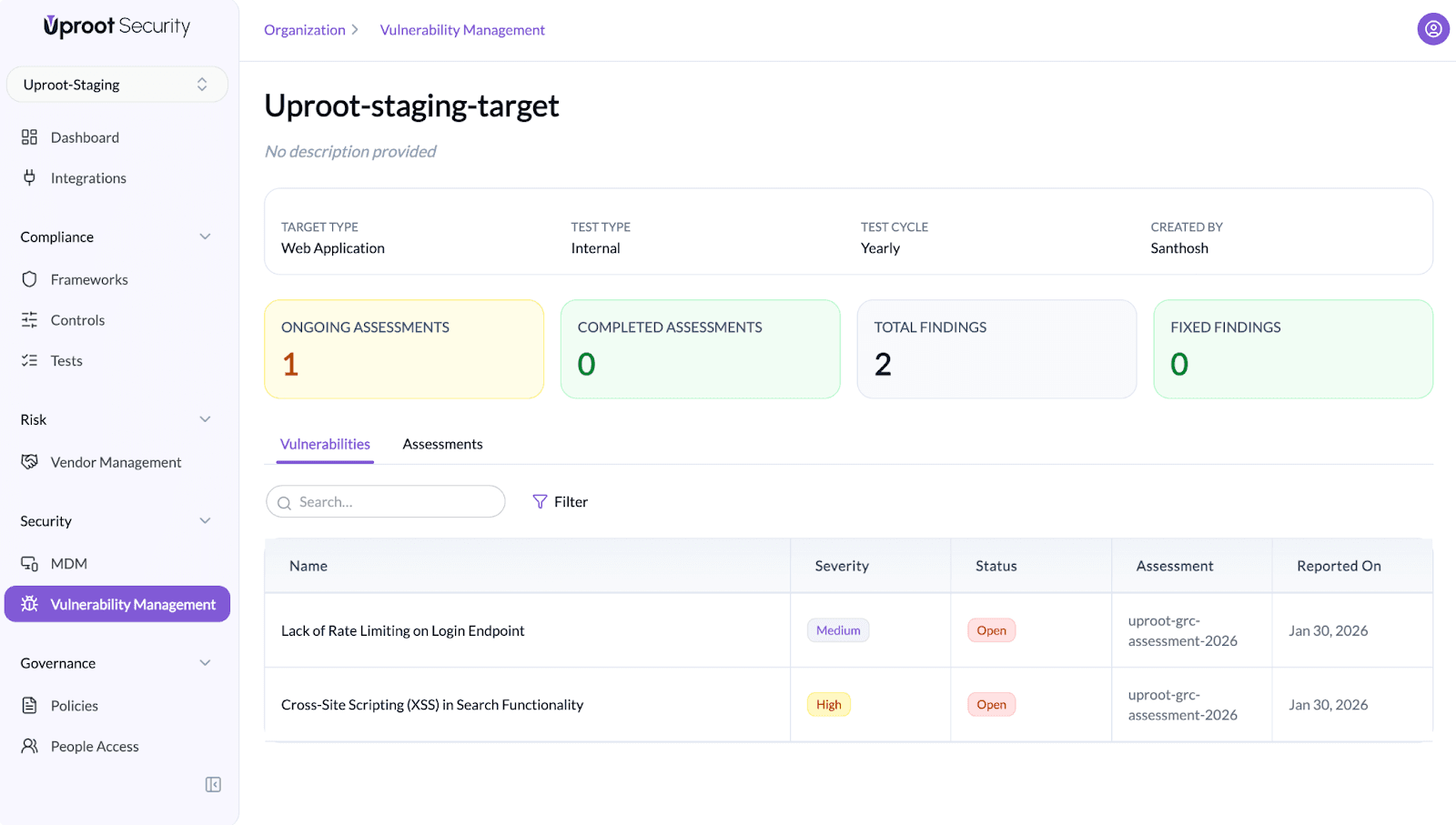
- Navigate to the Vulnerabilities tab.
All vulnerabilities identified across multiple assessments for the target are displayed here.
To view vulnerabilities for a specific assessment, select the relevant assessment from the Assessments tab.
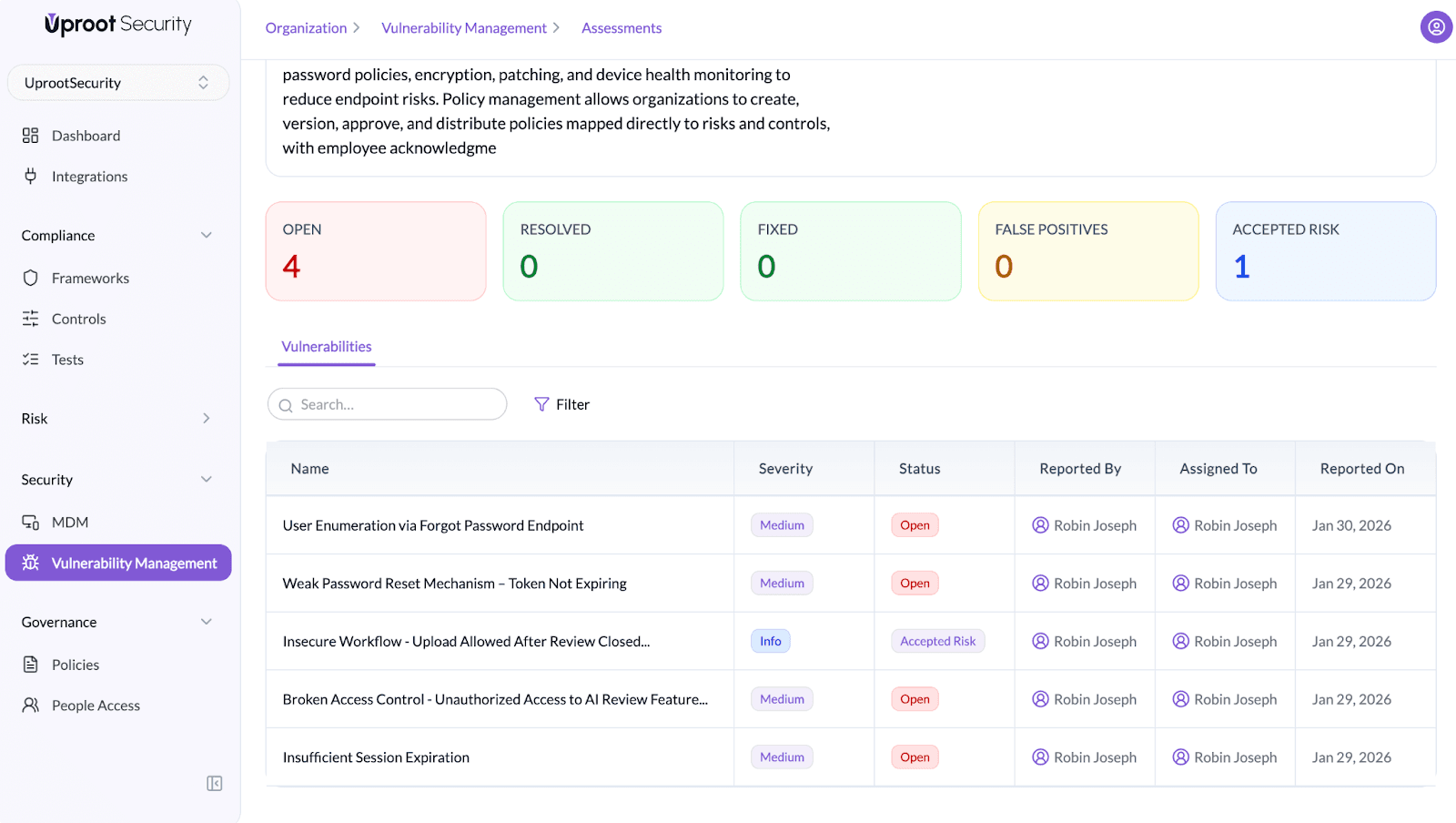
The vulnerabilities table includes:
- Name
- Severity (Low, Medium, High)
- Status (Open, Fixed, Resolved, False Positive, Accepted Risk)
- Reported by
- Assigned to
- Reported date
Summary counters provide a quick snapshot of open, resolved, fixed, and accepted risks.
Viewing Vulnerability Details
Clicking on a vulnerability opens the Finding Details panel.
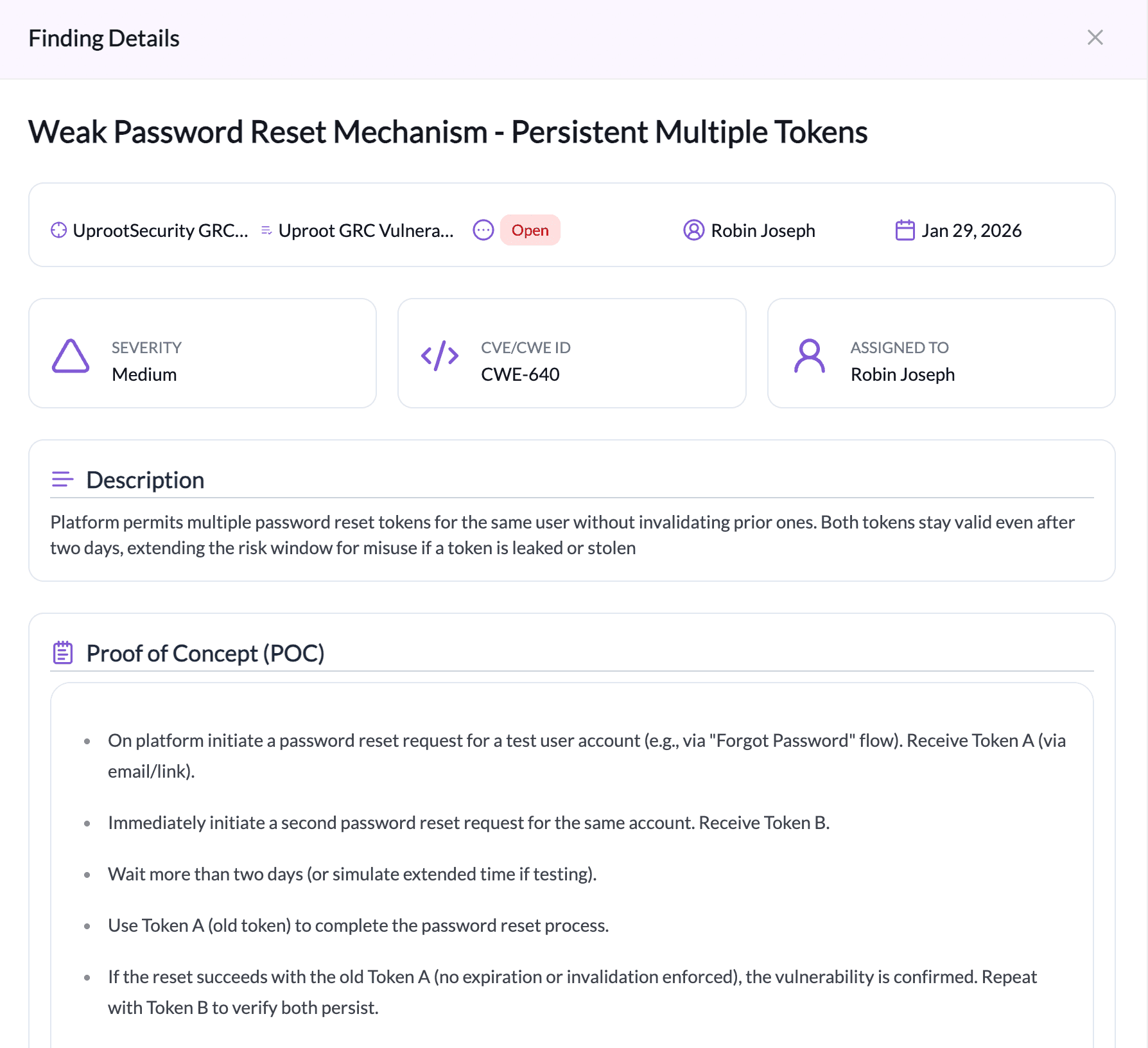
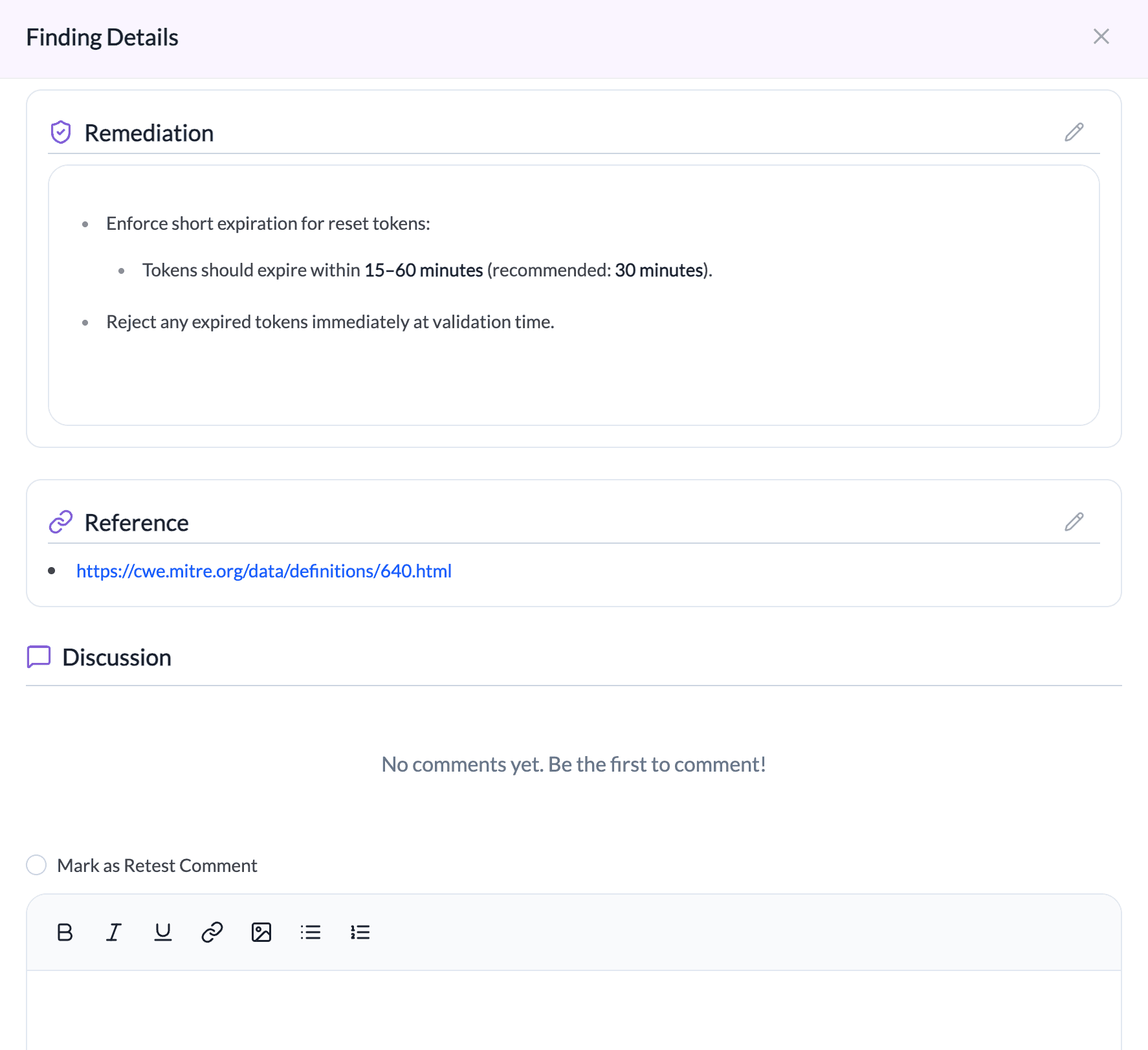
The finding details include:
- Severity:
Indicates the risk level of the vulnerability: Low, Medium, or High.
- CVE / CWE ID
Standard identifiers for tracking known vulnerabilities and weaknesses.
- Assigned Owner
The team member responsible for follow-up and coordination.
- Target & Assessment Reference
Shows which asset and assessment the finding relates to.
- Reported Date
The date when the vulnerability was discovered.
- Description
Explains the vulnerability, its potential impact, and how it can be exploited.
- Proof of Concept (PoC)
Step-by-step instructions demonstrating how the vulnerability can be reproduced.
- Remediation
Recommended steps to address the vulnerability, such as input validation, output encoding, or using security libraries.
- References
Optional external links or documentation related to the vulnerability.
- Discussion
Allows team members to collaborate, add comments, and track remediation progress.
