Creating Questionnaires and Uploading Reports

Au

Adarsh

February 3, 2026

The questionnaire workflow in the Uproot Security platform allows users to collect vendor responses and upload supporting documents as part of a vendor review.

Questionnaires and uploaded reports are used to generate review findings and support manual risk identification during the review process.

Vendor Reviews

Vendor reviews allow users to assess third-party vendors within a defined review cycle by collecting inputs, reviewing documentation, and identifying potential risks. Only the vendor owner can create a new review.


To create a vendor review:
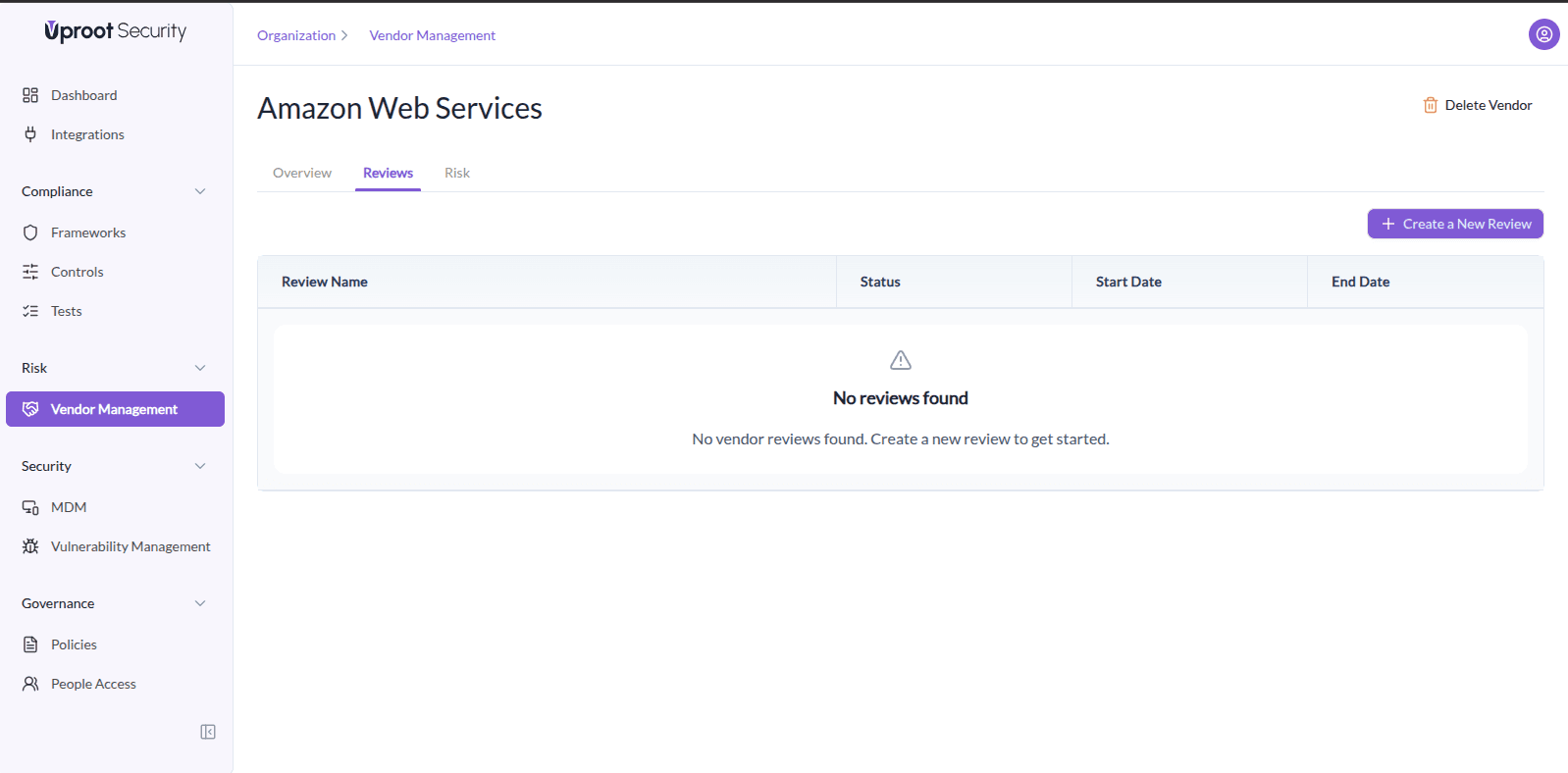
  1. Navigate to Vendor Management
  2. Select the vendor you want to assess from the vendor list.
  3. Open the Reviews tab for the selected vendor.

Image

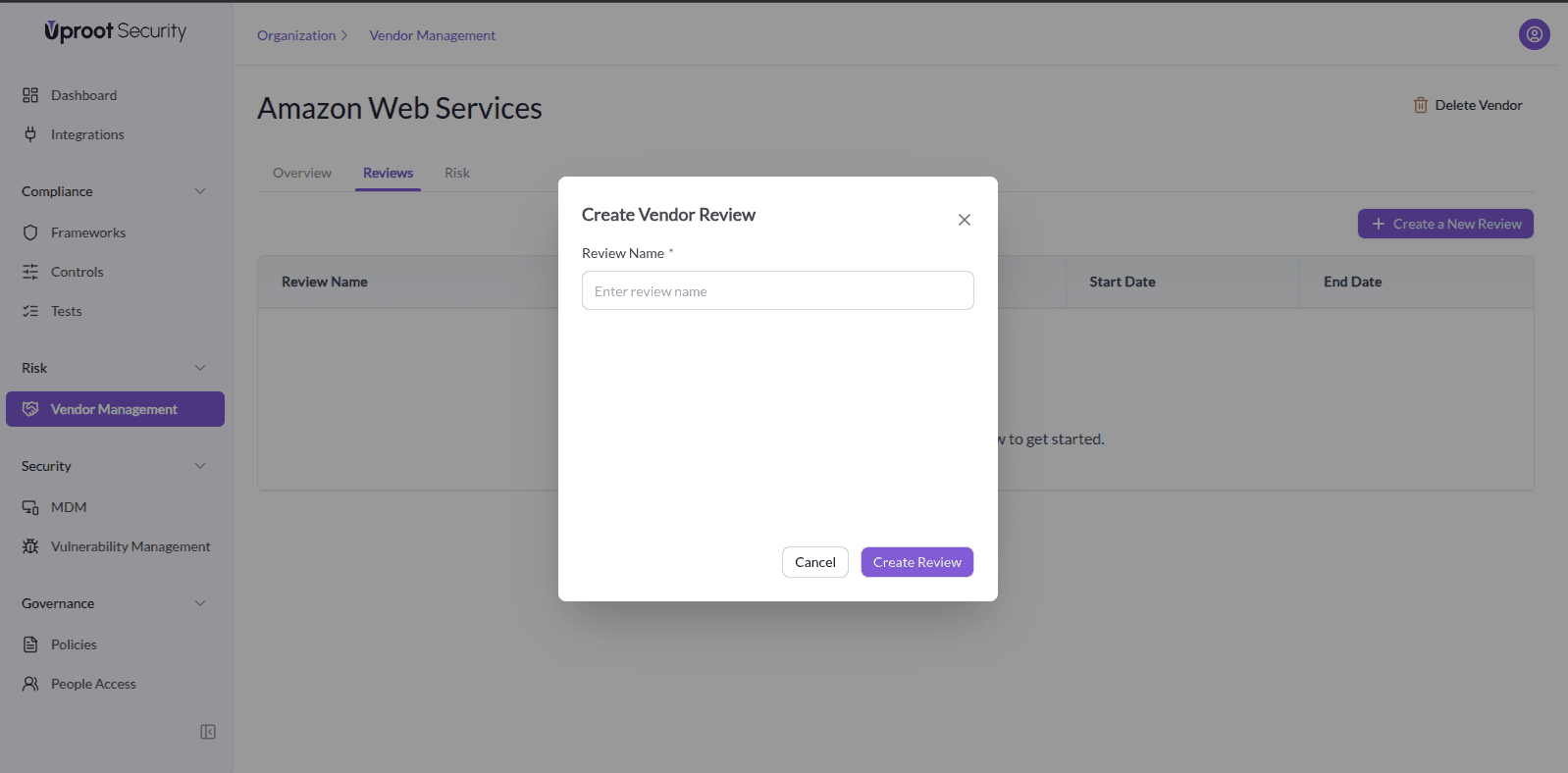
  1. Click Create a New Review.
  2. In the Create Vendor Review dialog, enter a Review Name to identify the assessment cycle.

Image

  1. Click Create Review to confirm.

Once created, the vendor review becomes the central workspace for questionnaires, uploaded reports, findings, and risk identification.

Questionnaires

Questionnaires are used to collect structured responses from vendors and form the primary input for generating review findings.
Image

To create a questionnaire for a vendor review:
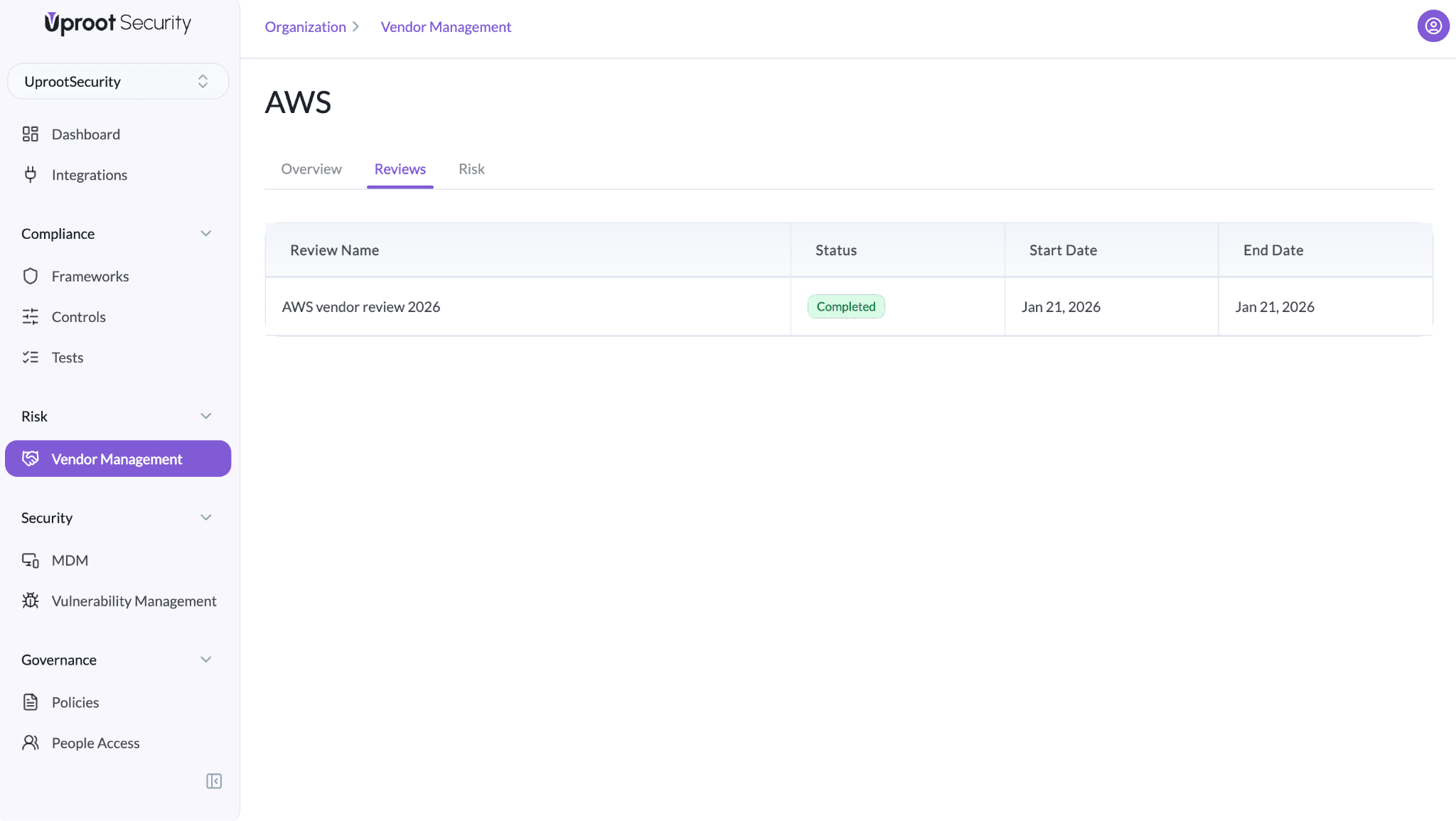
  1. Navigate to Vendor Management.
  2. Select the vendor you want to assess from the vendor list.
  3. Open the Reviews tab and select the relevant vendor review.

Image

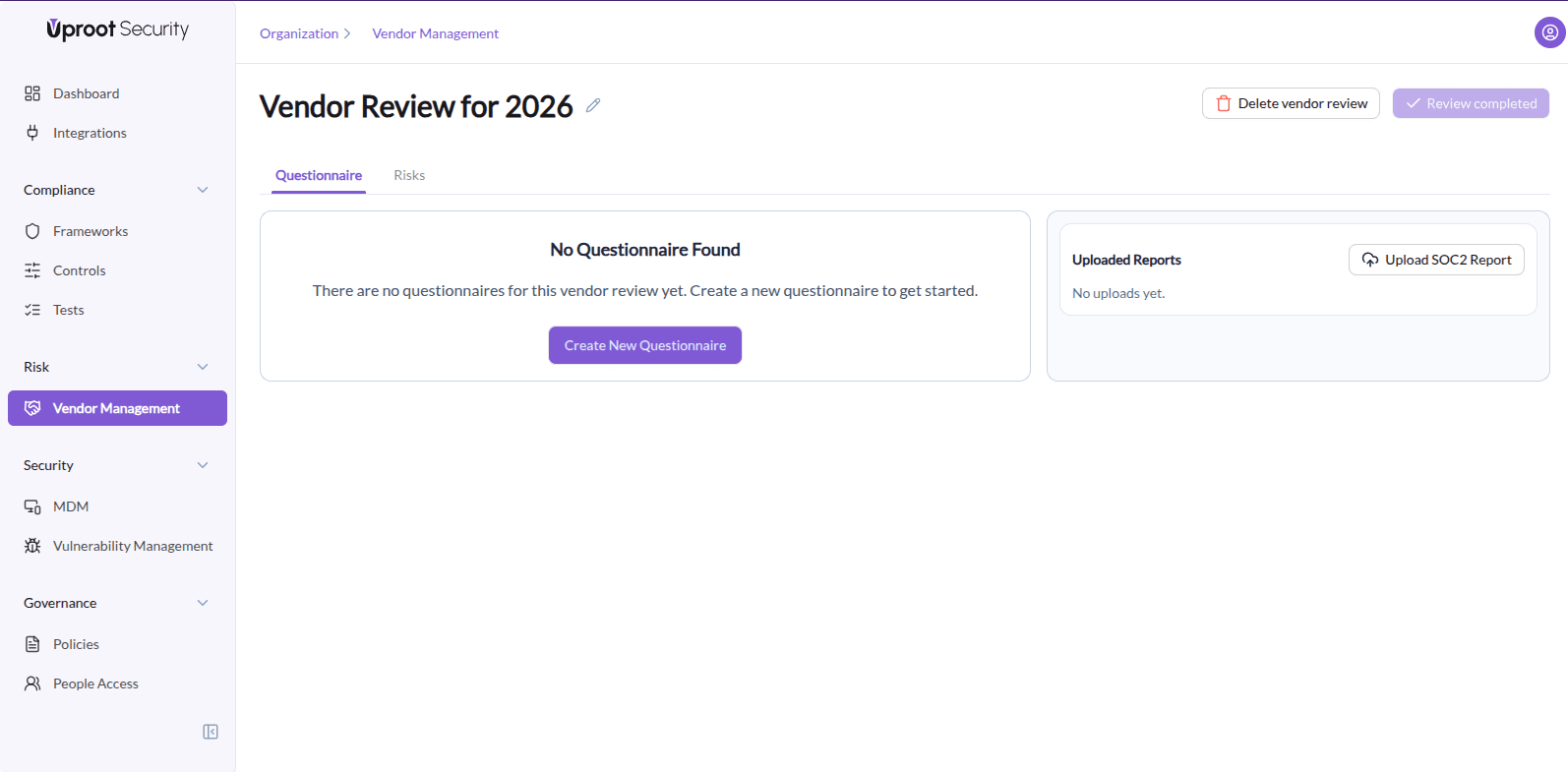
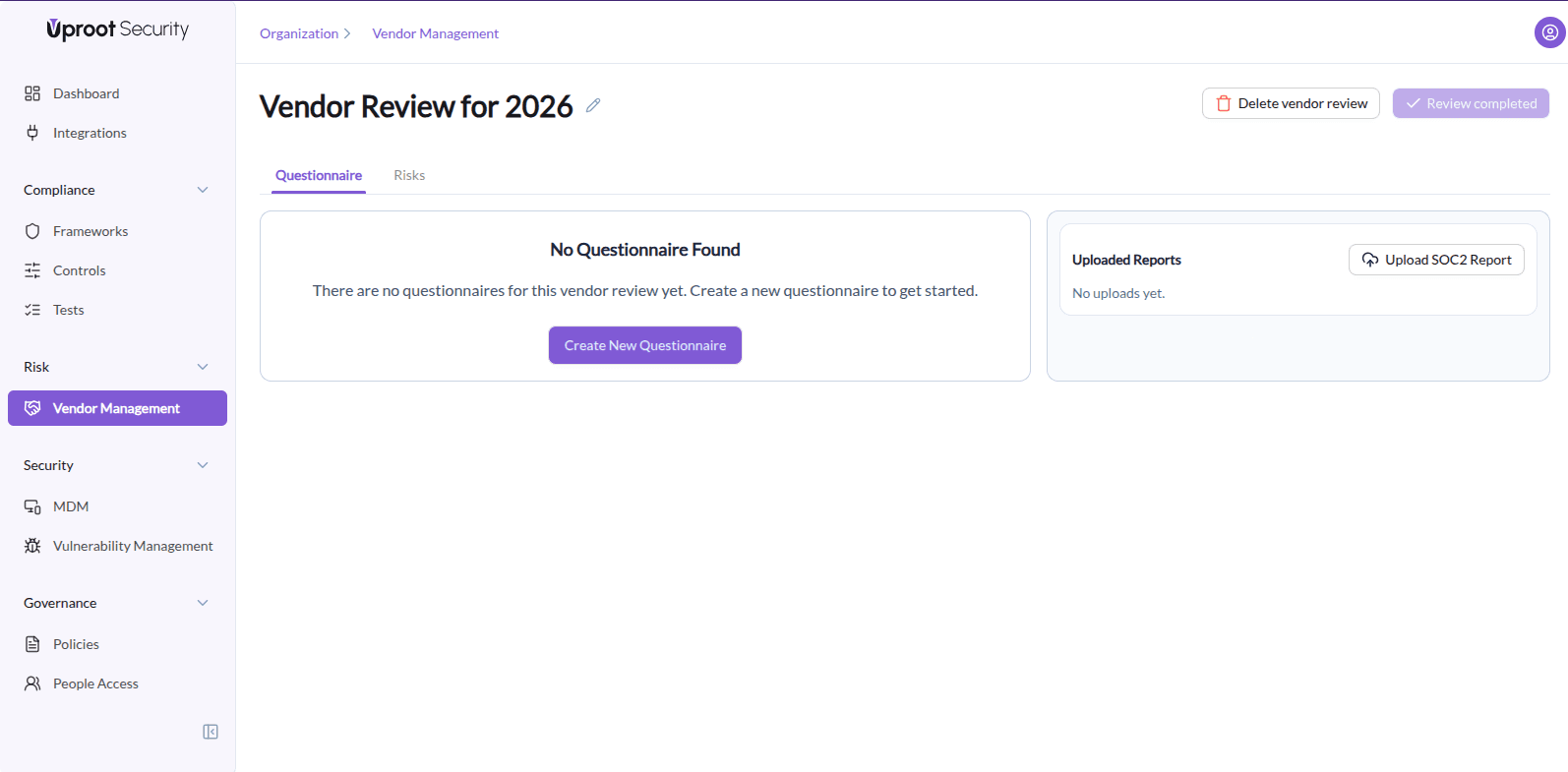
  1. Navigate to the Questionnaire tab.
    Image
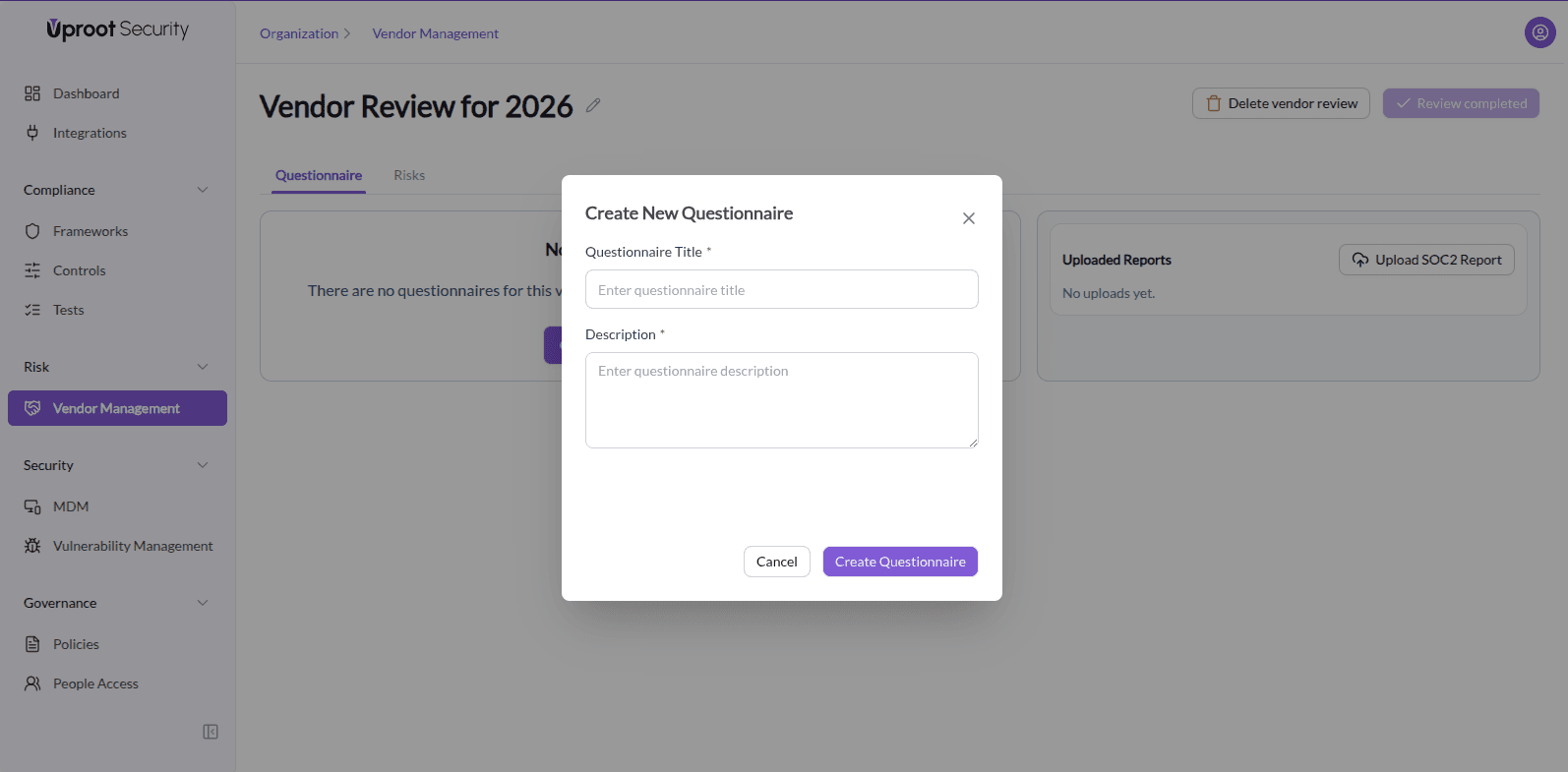
  2. Click Create New Questionnaire.
    Image
  3. Enter the Questionnaire Title.
  4. Enter the Description.
  5. Click Create Questionnaire.

The questionnaire will be created and attached to the vendor review.

Adding Questions to a Questionnaire

Questions can be added to a questionnaire in two ways: by adding a custom question manually or by creating questions using AI.


To add questions to a questionnaire:
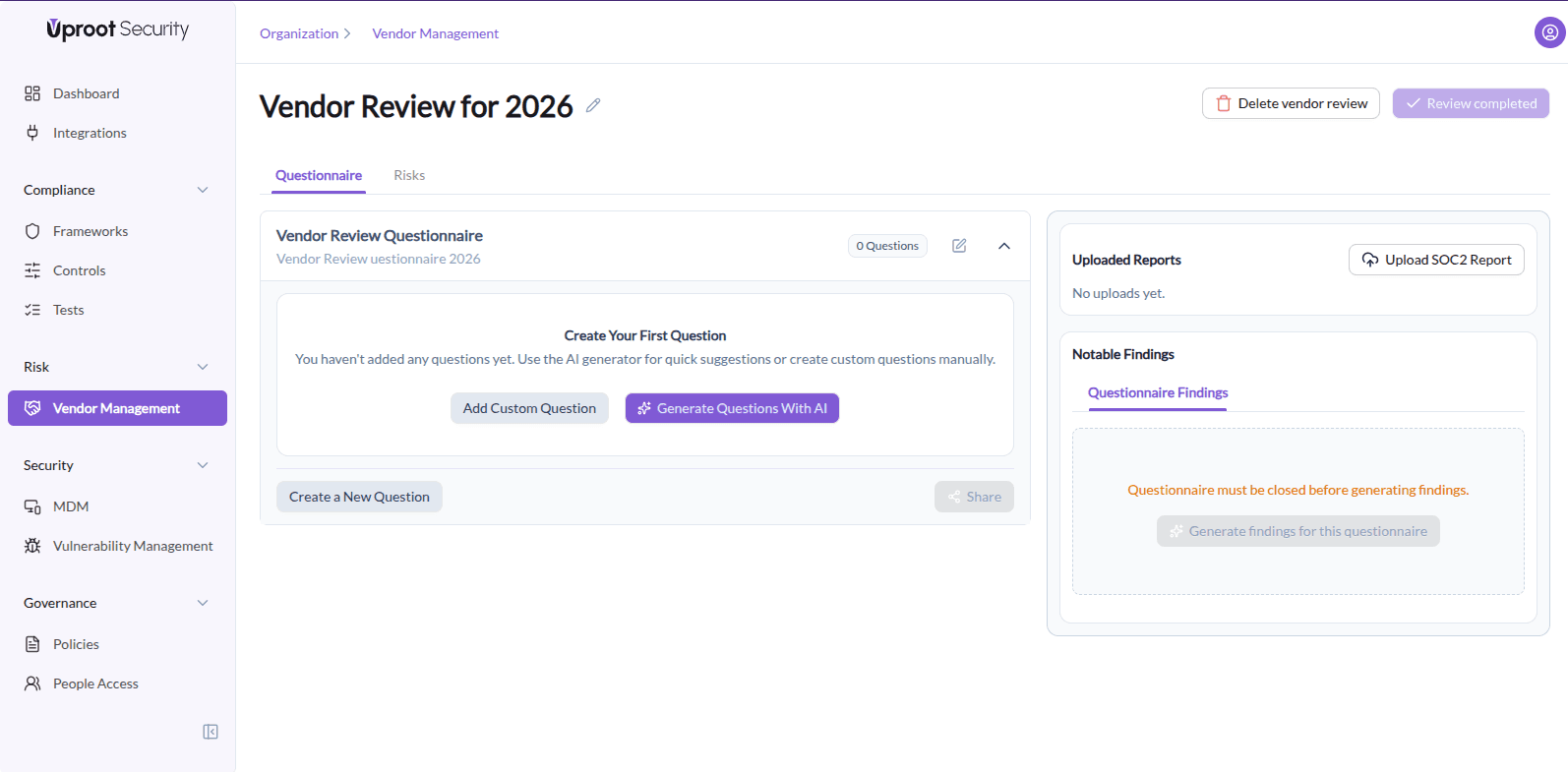
  1. Open the created questionnaire.
    Image
  2. Click Add Custom Question or Create Questions With AI, depending on how you want to add questions.

Custom Questions

Custom questions allow users to manually add specific questions to a questionnaire based on internal requirements or vendor context.


To add a custom question:
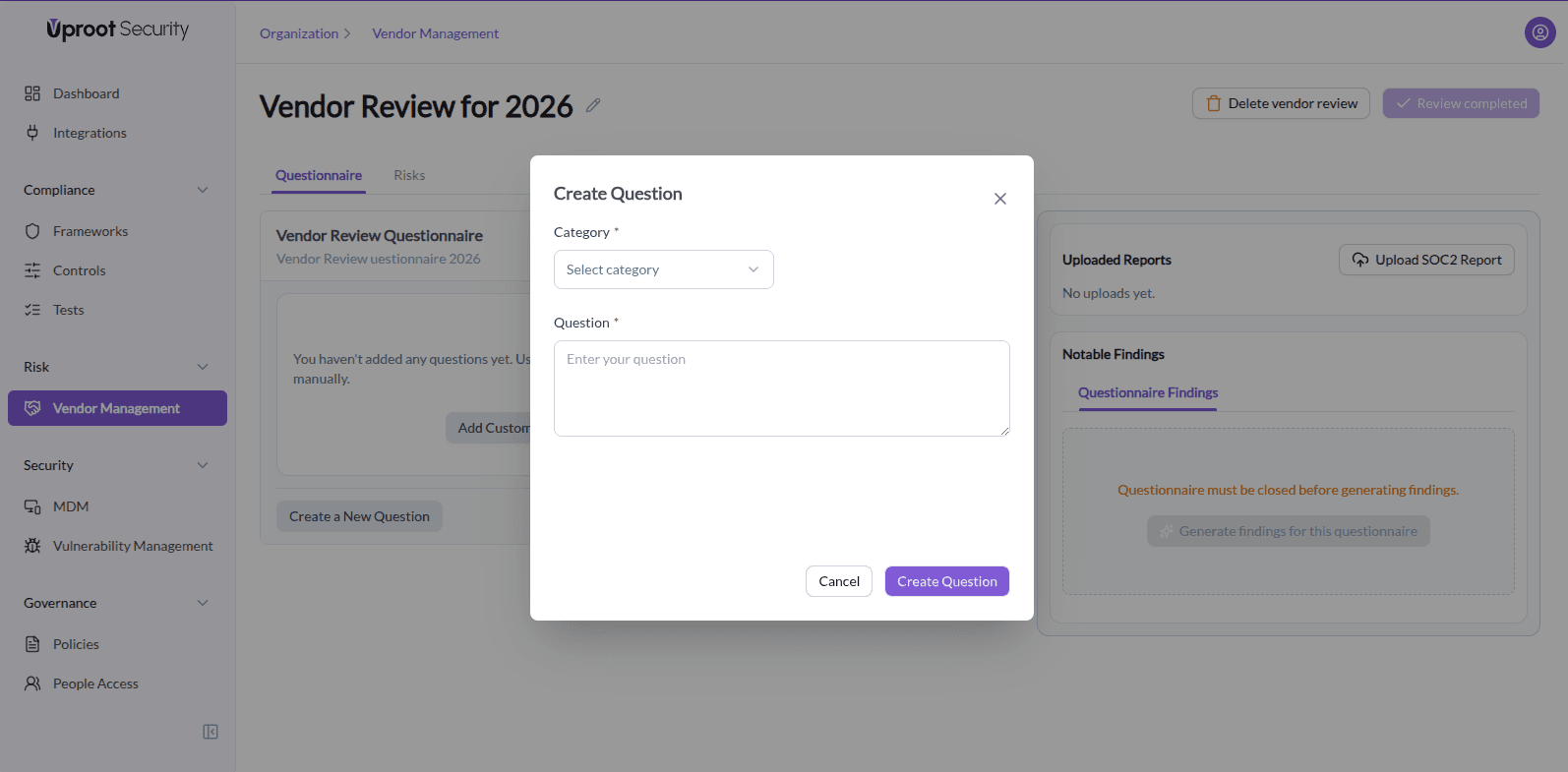
  1. Open the questionnaire.
  2. Click Add Custom Question.

Image

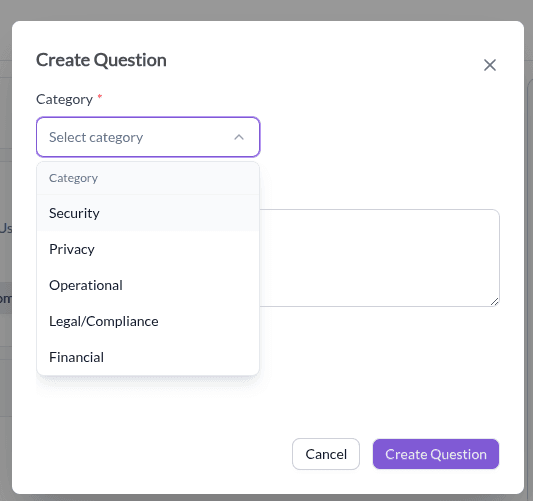
  1. Select a Category:
    • Security
    • Privacy
    • Operational
    • Legal/Compliance
    • Financial

Image

  1. Enter the Question.
  2. Click Create Question.


The question will be added to the questionnaire.

AI-Generated Questions

AI-generated questions help users quickly populate questionnaires with relevant questions for review.


To create questions using AI:
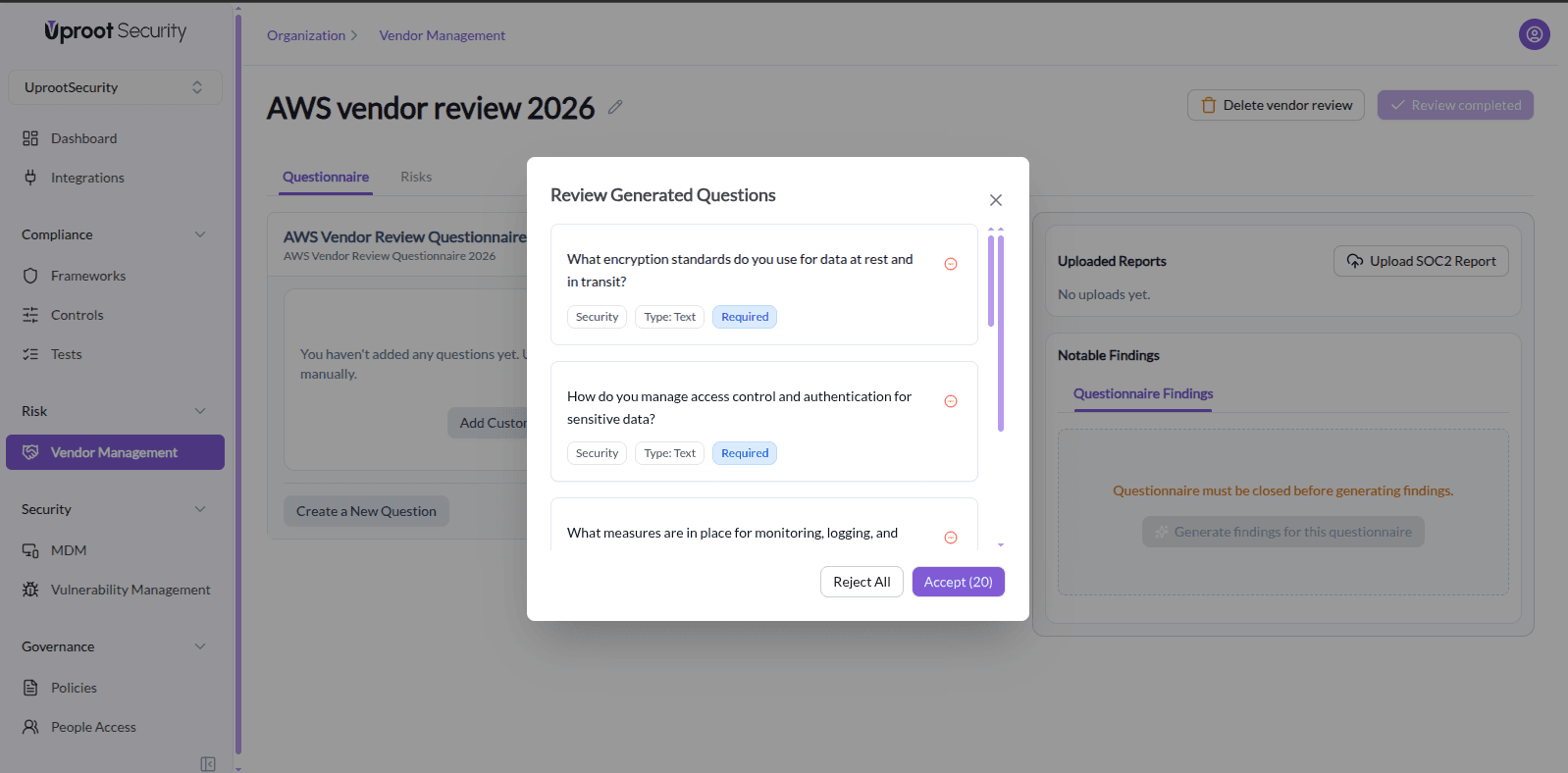
  1. Open the questionnaire.
  2. Click Create Questions With AI.
  3. AI-generated questions will be displayed for review.
  4. Review the suggested questions and make edits if required.Image
  5. Choose one of the following actions:
  • Approve All to add the generated questions to the questionnaire.
  • Reject All to discard the generated questions.

Approved questions are added to the questionnaire only after confirmation.

Completing the Questionnaire

To complete the questionnaire:

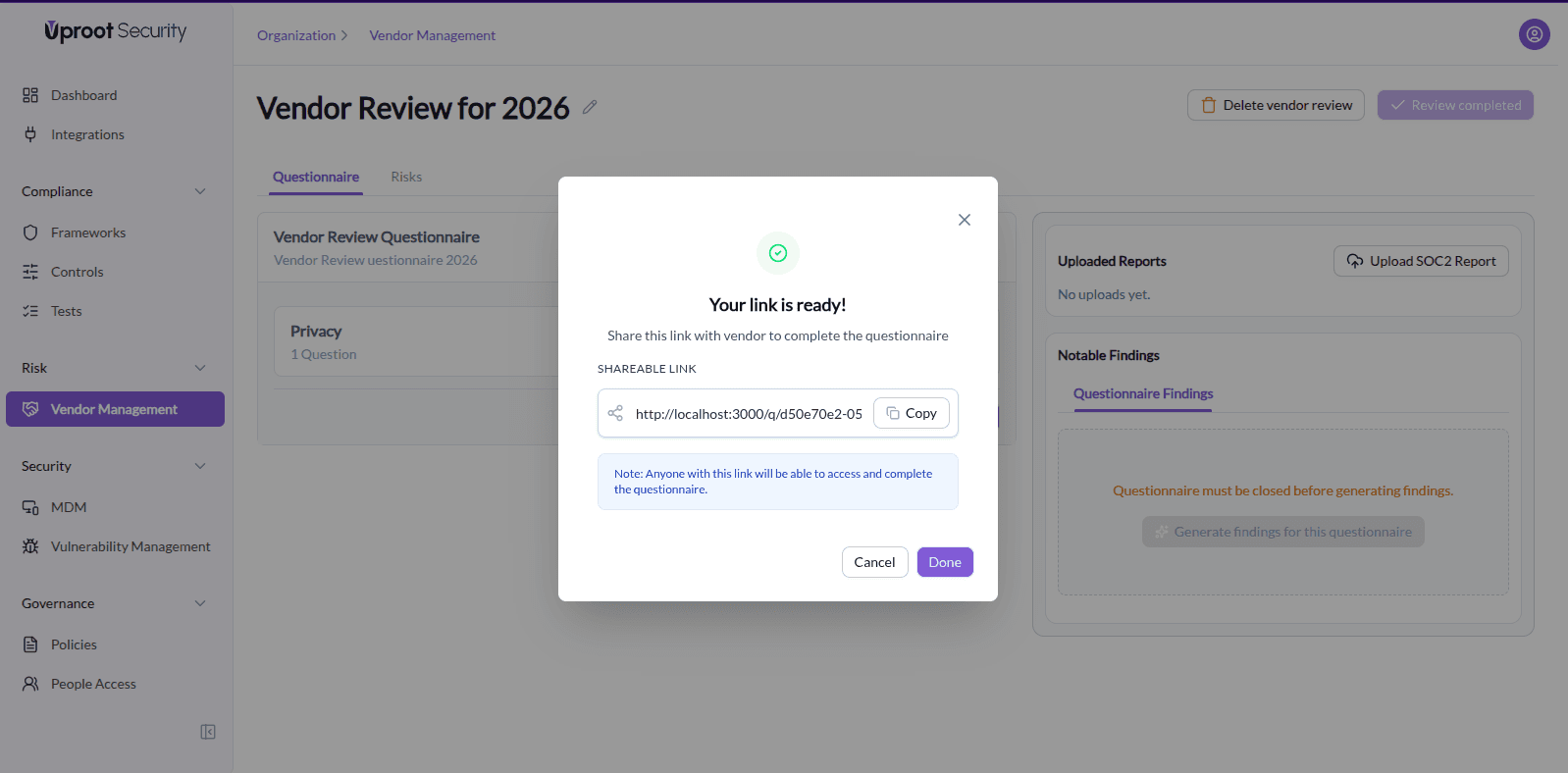
  1. Generate a shareable link for the questionnaire.
    Image
  2. Share the link with the vendor.
  3. The vendor completes and submits the questionnaire via the link.

Completed questionnaire responses are used during the review process.

Uploaded Reports

Uploaded reports allow vendors to submit supporting documents, such as compliance or security reports, as part of a review.


To upload reports for a vendor review:
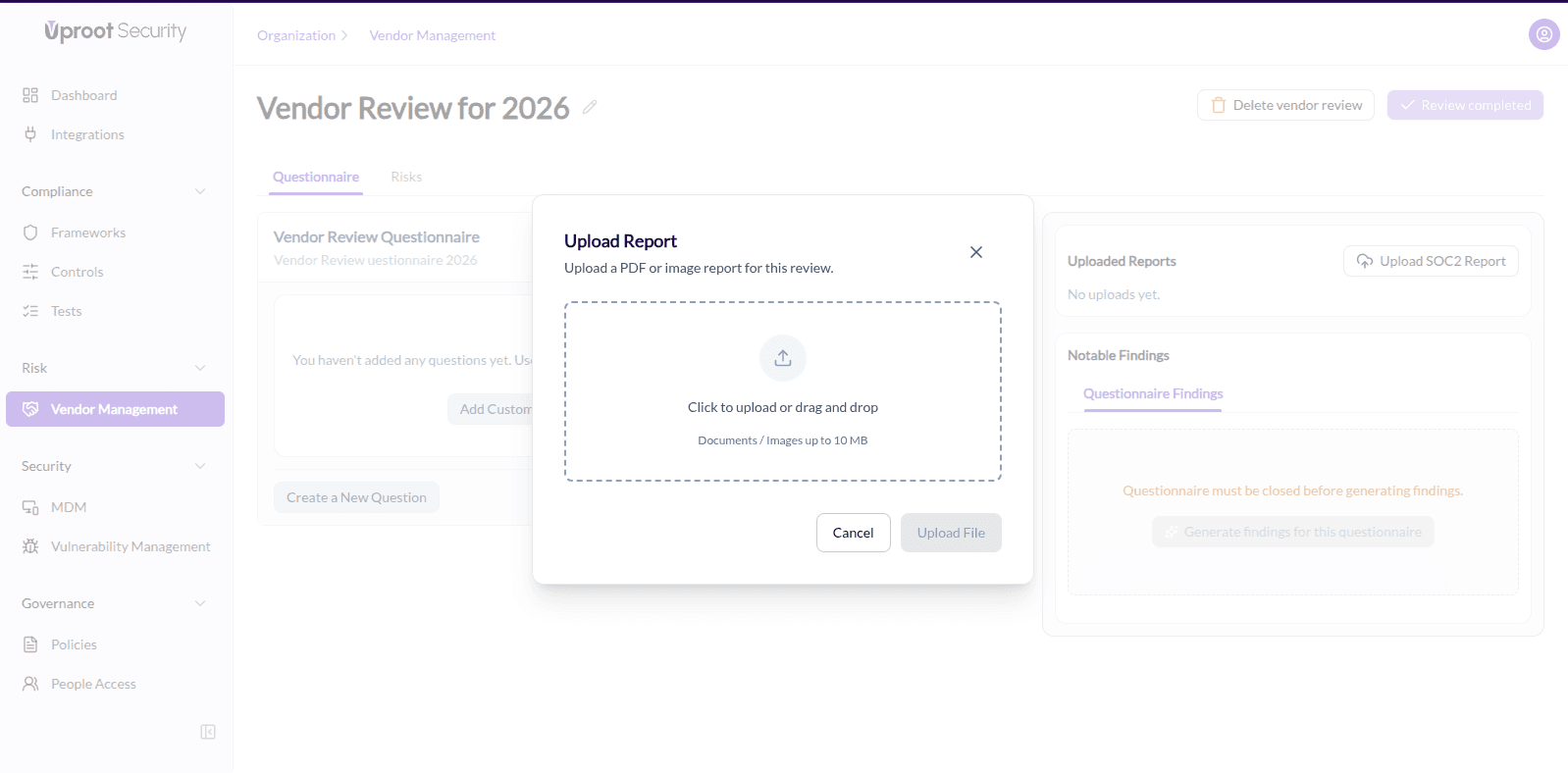
  1. Navigate to the Uploaded Reports section of the vendor review.
    Image
  2. Click Upload Report.
  3. Upload a supported file (PDF or image, up to 10 MB).
  4. Click Upload File.

The uploaded report will be associated with the vendor review.


Notable Findings

Notable findings are generated after reviewing inputs from a vendor review and highlight areas that may require further review. There are two types of findings:
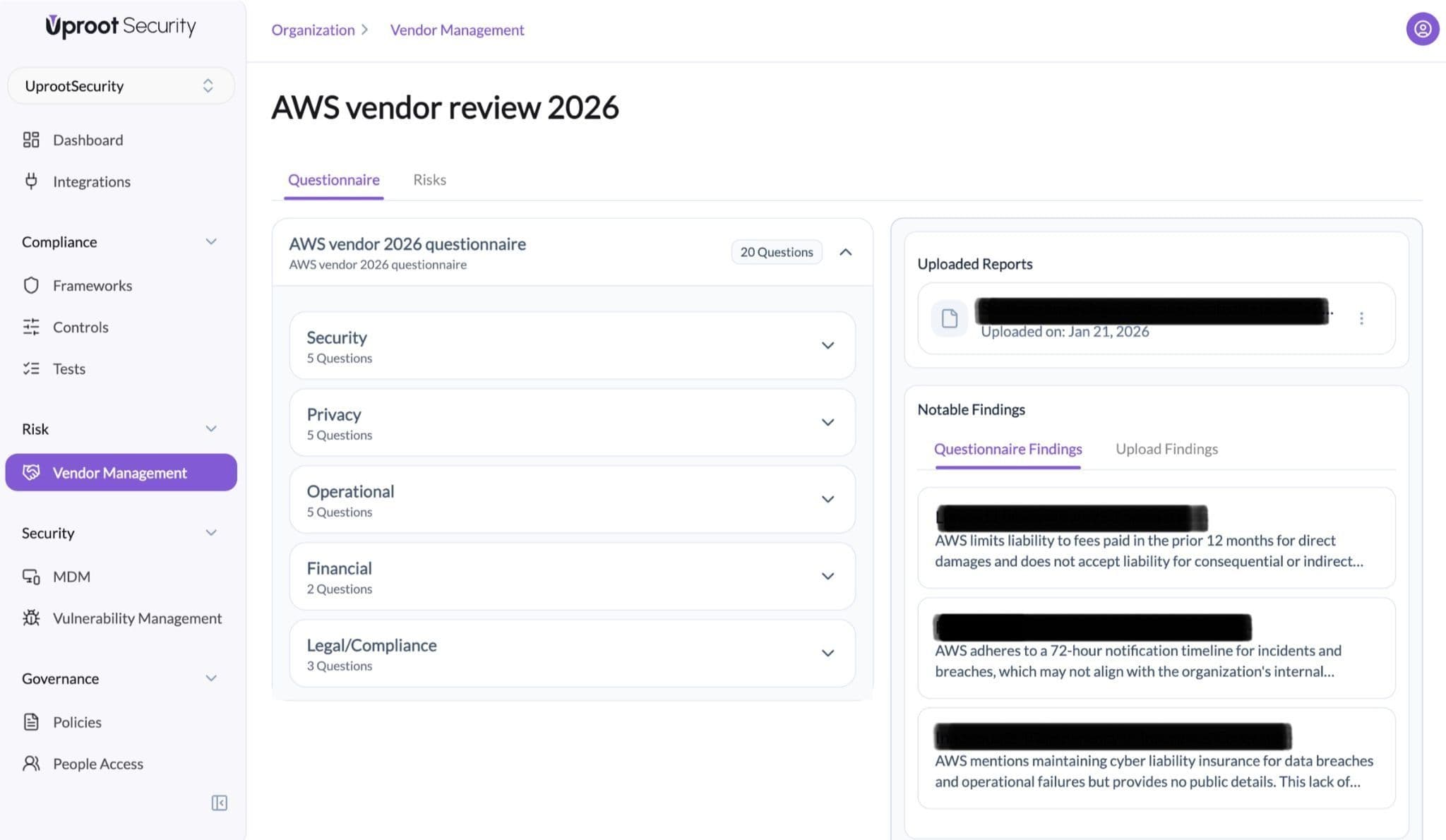
  1. Questionnaire Findings

Image

These are generated from completed questionnaire responses.

To generate findings from completed questionnaires:

  1. Ensure the questionnaire is completed and closed.
  2. Navigate to the Notable Findings section.
  3. Click Generate findings for this questionnaire.

AI will review the questionnaire responses and generate findings.
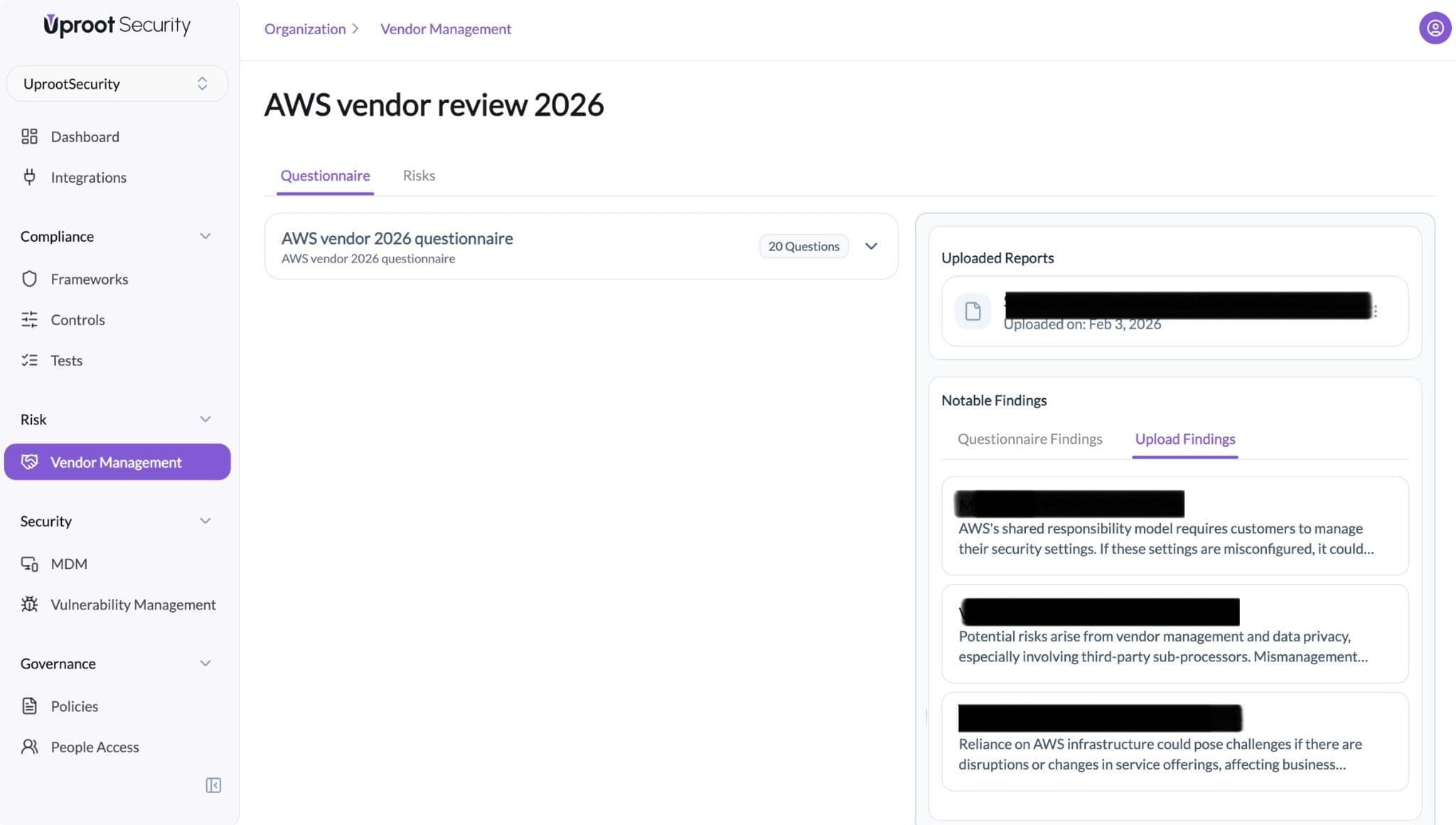

  1. Uploaded Report Findings

Image
These are generated from supporting documents uploaded by the vendor.

To generate findings from uploaded reports:
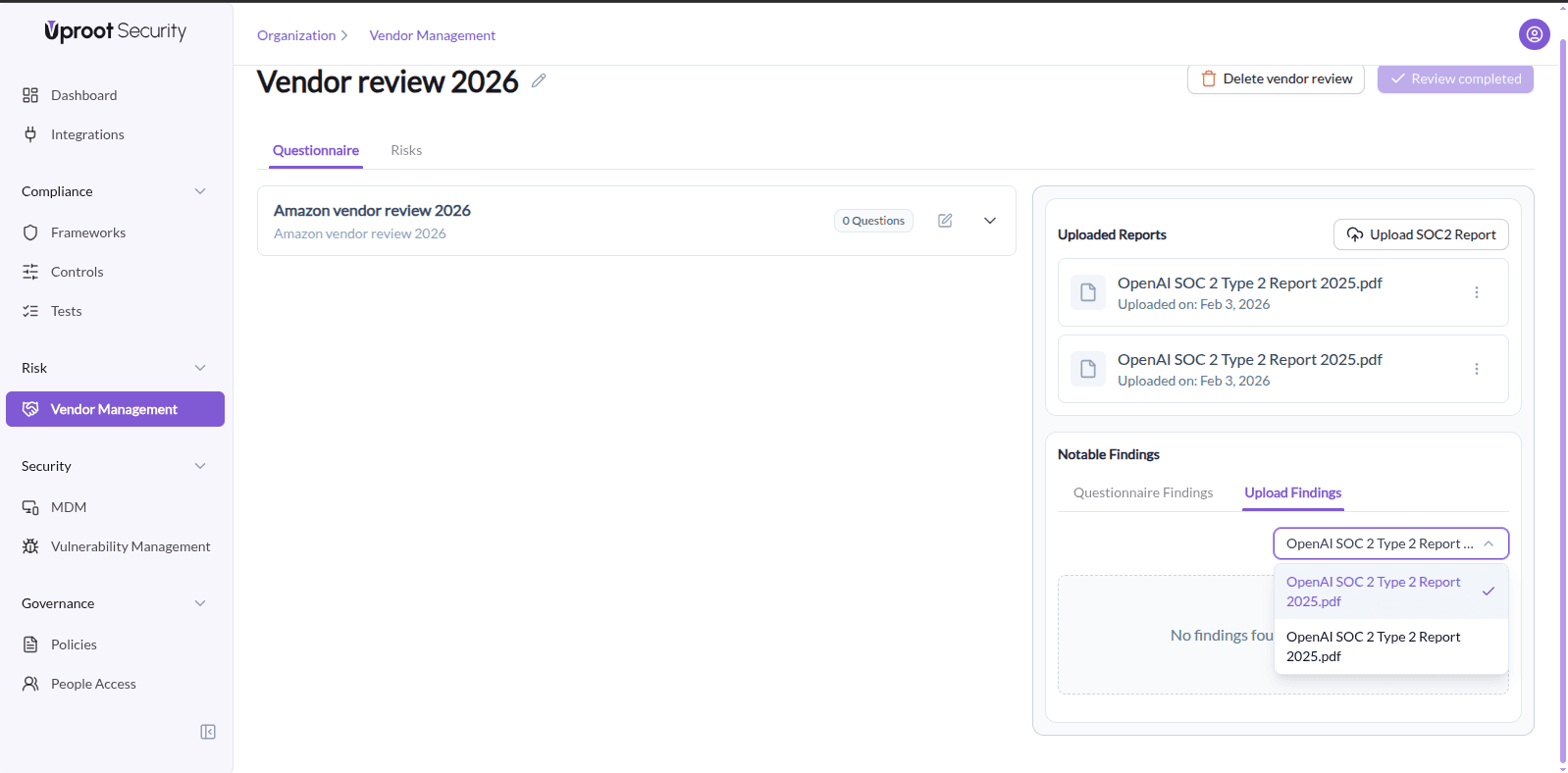
  1. Ensure the relevant reports are uploaded and visible in the vendor review.
  2. Navigate to the Notable Findings section.
  3. If multiple reports are available, select the specific uploaded report you want to review.


Image

  1. Click Generate findings for this upload.


AI will review the selected uploaded report and generate findings based on its contents.

Risk Register

The risk register is used to manually record validated risks identified during the vendor review process.


To add risks identified during the review:
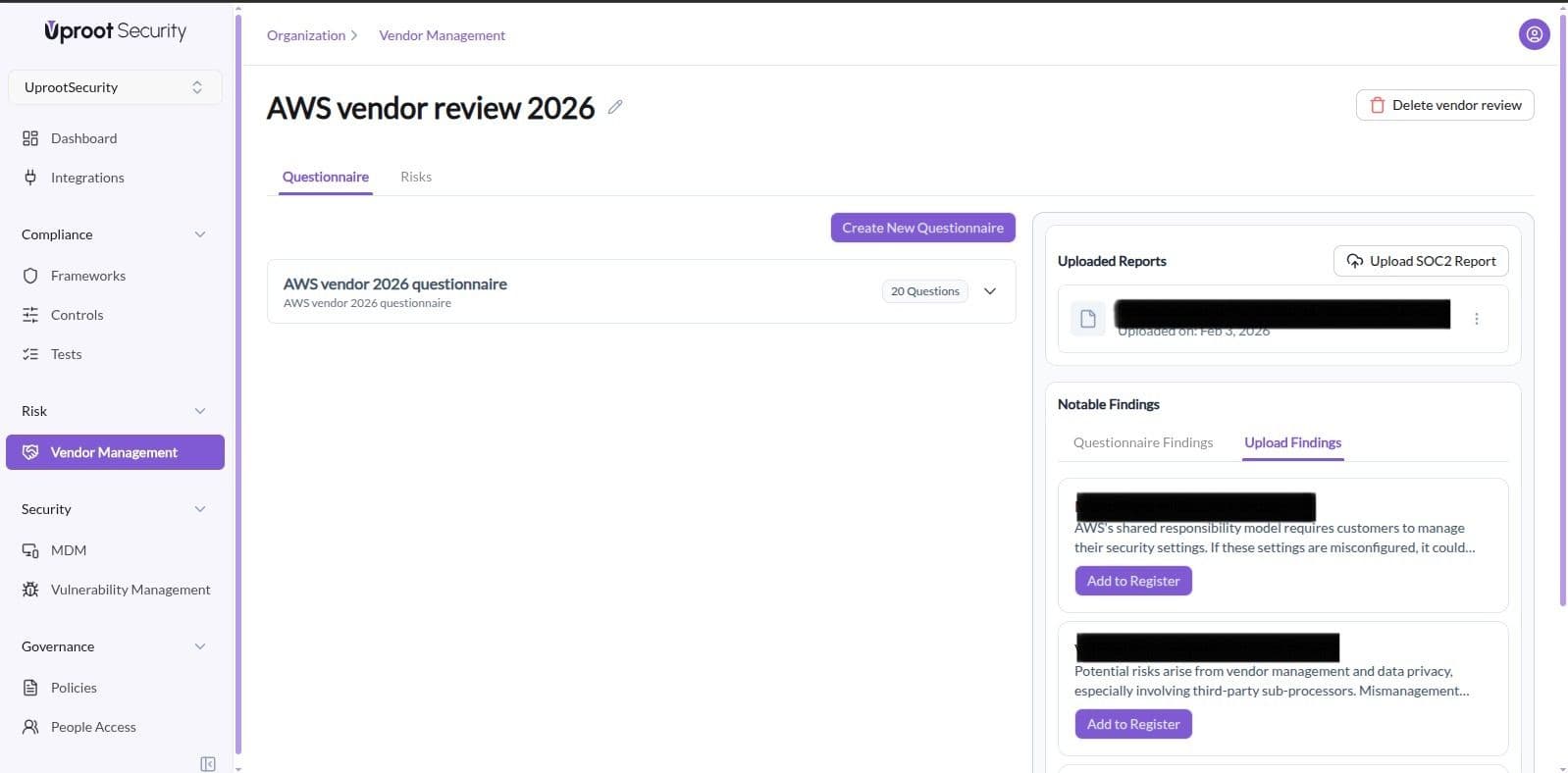
  1. Review the generated findings.
  2. Validate the findings using human expertise.
  3. Manually add confirmed risks to the Risk Register.

Image
Risks are not added automatically and require manual input.

Powered By SparrowDesk